
Qt Quick Layouts - Beispiel für ein responsives Layout
Veranschaulicht, wie man mit „ LayoutItemProxy “ eine responsive Benutzeroberfläche erstellt.
Dieses Beispiel zeigt, wie man „LayoutProxyItems“ in Kombination mit Layouts verwendet, um responsive Layouts zu erstellen.
Ausführen des Beispiels
Sie können das Beispiel wie folgt ausführen:
- Qt Creator
Öffnen Sie den „ Welcome “-Modus und wählen Sie das Beispiel unter „ Examples “ aus. Weitere Informationen finden Sie unter Qt Creator: Tutorial: Erstellen und Ausführen.
- Qt Extension for Visual Studio Code
Führen Sie den Befehl „ Qt: Open Qt examples “ über „ Command Palette “ aus und wählen Sie das Beispiel aus der Liste aus. Weitere Informationen finden Sie unter Qt Extension for Visual Studio Code: Tutorial: Erstellen und Ausführen.
Elemente erstellen
Der Typ „ LayoutItemProxy “ ermöglicht es, dasselbe Element in verschiedenen Layouts zu verwenden, wobei jedoch jeweils nur ein Layout sichtbar sein kann. Dies kann genutzt werden, um responsive Layouts zu erstellen, die sich an die Fenster- oder Bildschirmgröße anpassen.
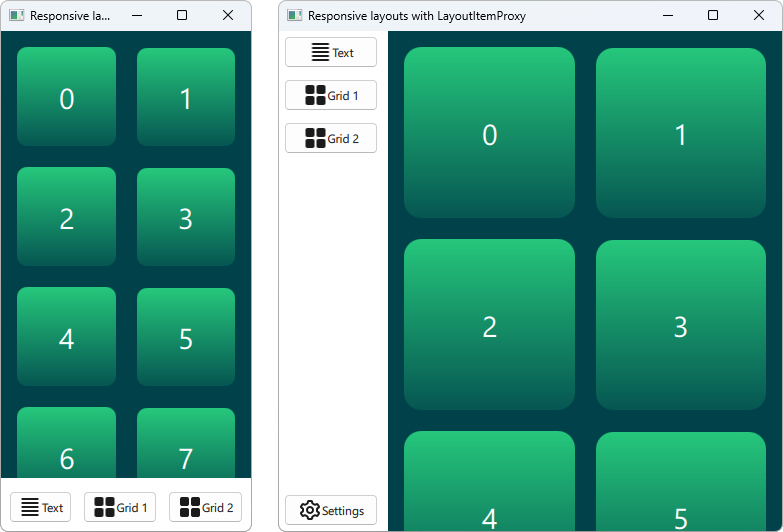
Zunächst müssen wir alle Elemente definieren, die irgendwann in unserer Benutzeroberfläche erscheinen sollen. Wir verwenden ein `AnnotatedRect`, bei dem es sich um ein einfaches Rechteck mit zusätzlichem Text handelt.
Rectangle {
    id: contentItem
    Layout.fillWidth: true
    implicitHeight: grid.implicitHeight
    implicitWidth: grid.implicitWidth
    color: "#00414A"

    GridLayout {
        id: grid
        anchors {
            fill: parent
            margins: 8
        }
        columns: Math.max(1, Math.min(Math.round(width / 130), 6))
        Repeater {
            model: 60
            delegate: Rectangle {
                required property int index
                Layout.fillWidth: true
                Layout.margins: 8
                implicitWidth: 200
                implicitHeight: width
                radius: width / 10
                gradient: Gradient {
                    GradientStop { position: -0.2; color: "#2CDE85" }
                    GradientStop { position: 1.2; color: "#00414A" }
                }
                Text {
                    color: "#ffffff"
                    font.pointSize: 22
                    anchors.centerIn: parent
                    text: parent.index + 1
                }
            }
        }
    }
}

Button {
    id: a
    text: "Text"
    icon.source: "./icons/text.svg"
    Layout.fillWidth: true
    Layout.margins: 3
}

Button {
    id: b
    text: "Grid 1"
    icon.source: "./icons/grid.svg"
    Layout.fillWidth: true
    Layout.margins: 3
}

Button {
    id: c
    text: "Grid 2"
    icon.source: "./icons/grid.svg"
    Layout.fillWidth: true
    Layout.margins: 3
}

Button {
    id: d
    text: "Settings"
    icon.source: "./icons/settings.svg"
    Layout.fillWidth: true
    Layout.margins: 3
}
Layouts erstellen
Wir können nun mithilfe von ` LayoutItemProxies` verschiedene Layouts deklarieren, die auf die zuvor deklarierten Elemente abzielen. Ein einzelnes Layout lässt sich wie folgt definieren.
ColumnLayout {
    id: smallLayout
    anchors.fill: parent

    Flickable {
        Layout.fillHeight: true
        Layout.fillWidth: true
        contentWidth: width
        contentHeight: gl.implicitHeight
        clip: true
        ScrollIndicator.vertical: ScrollIndicator { }
        LayoutItemProxy {
            id: gl
            width: parent.width
            height: implicitHeight
            target: contentItem
        }
    }

    RowLayout {
        Layout.fillHeight: false
        Layout.fillWidth: true
        Layout.margins: 5
        LayoutItemProxy{ target: a; }
        LayoutItemProxy{ target: b; }
        LayoutItemProxy{ target: c; }
    }
}
Dieser Codeausschnitt zeigt mehrere Möglichkeiten zur Verwendung von „ LayoutItemProxy “. Die einfachste Methode besteht darin, „ LayoutItemProxies “ zu einem Layout hinzuzufügen, wie hier bei „ RowLayout “. Zusätzlich legen wir für das `LayoutProxyItem` eine zusätzliche angehängte Eigenschaft ` Layout ` fest, die sich nur auf das Zielelement in diesem bestimmten Layout auswirkt. Ferner sehen wir, dass das Element ` d ` im ersten Layout nicht verwendet wird. Dann wird es im zweiten Layout automatisch durch das ` LayoutItemProxy ` ausgeblendet. Eine weitere Verwendungsmöglichkeit besteht darin, ein ` LayoutItemProxy ` als Inhalt eines ` Flickable` festzulegen.
Ein weiteres Layout wird wie folgt deklariert.
RowLayout {
    id: largeLayout
    anchors.fill: parent
    ColumnLayout {
        Layout.minimumWidth: 100
        Layout.fillWidth: true
        Layout.margins: 2
        LayoutItemProxy{ target: a }
        LayoutItemProxy{ target: b }
        LayoutItemProxy{ target: c }
        Item { Layout.fillHeight: true }
        LayoutItemProxy{ target: d }
    }

    LayoutItemProxy {
        Layout.fillHeight: true
        Layout.fillWidth: true
        target: contentItem
    }
}
Hier zeigen wir, dass „ LayoutItemProxies “ zusammen mit echten „ Items “ auf derselben Hierarchieebene verwendet werden kann. Generell ist das „ LayoutItemProxy “ flexibel und ermöglicht verschachtelte Strukturen aus Elementen und Layouts.
Einrichten des Layouts
Nachdem zwei Layouts – „ smallLayout “ und „ largeLayout “ – definiert wurden, können wir mit der Einstellung des Layouts fortfahren, das zur aktuellen Größe der Anwendung passt. Wir definieren hierfür eine neue Funktion, die wir bei der Initialisierung des Fensters und bei jeder Änderung der Breite aufrufen:
function setFittingLayout() {
    if (width < 450) {
        smallLayout.visible = true
        largeLayout.visible = false
    } else {
        smallLayout.visible = false
        largeLayout.visible = true
    }
}
onWidthChanged: setFittingLayout()
Component.onCompleted: setFittingLayout()
Alternativ zum Aufruf dieser Funktion nach der Initialisierung können wir im deklarativen Code alle Layouts außer dem für die Anfangsgröße passenden ausblenden.
© 2026 The Qt Company Ltd. Documentation contributions included herein are the copyrights of their respective owners. The documentation provided herein is licensed under the terms of the GNU Free Documentation License version 1.3 as published by the Free Software Foundation. Qt and respective logos are trademarks of The Qt Company Ltd. in Finland and/or other countries worldwide. All other trademarks are property of their respective owners.
