Assets
Assets are the images you use in your design. Clate keeps them inside your project, so a project always travels with its images.
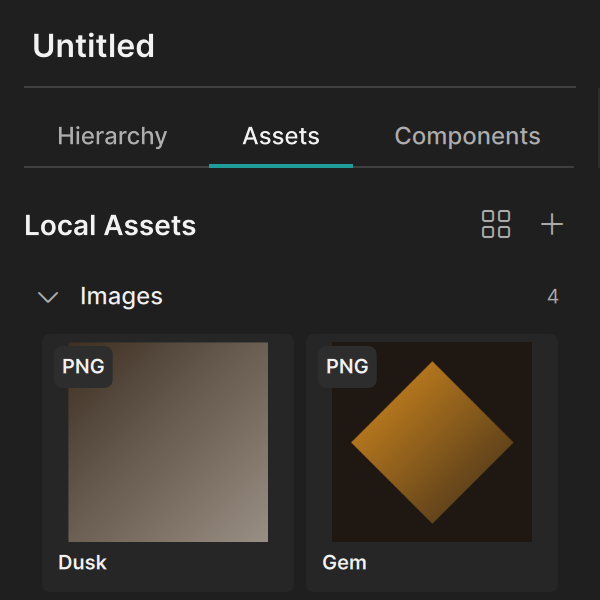
The Assets tab
The Assets tab of the Hierarchy panel lists the assets of the project under the title Local Assets. Clate groups assets by kind. It currently supports images, which it lists in the Images group together with the number of images in the group. Each entry shows a small picture, the name, and the type, for example PNG.
Two buttons at the top of the tab help you work with the list:
- The grid/list button switches between a list and a grid of previews.
- The + button adds assets. See Importing and using assets.
Supported formats
| Format | File extensions |
|---|---|
| PNG | .png |
| JPEG | .jpg, .jpeg |
| SVG | .svg |
| WebP | .webp |
Clate recognizes the format from the content of the file, not from its extension.
Assets belong to the project
Clate stores assets inside the project, not as separate files next to it. This means:
- You do not need to keep the original image files. Moving or deleting them on your computer does not affect the project.
- When you use Save Local Copy or Import Project, the assets travel with the project. See Projects and saving.
- When you export the project to QML, Clate writes the images to an
Assetsfolder next to the exported files.
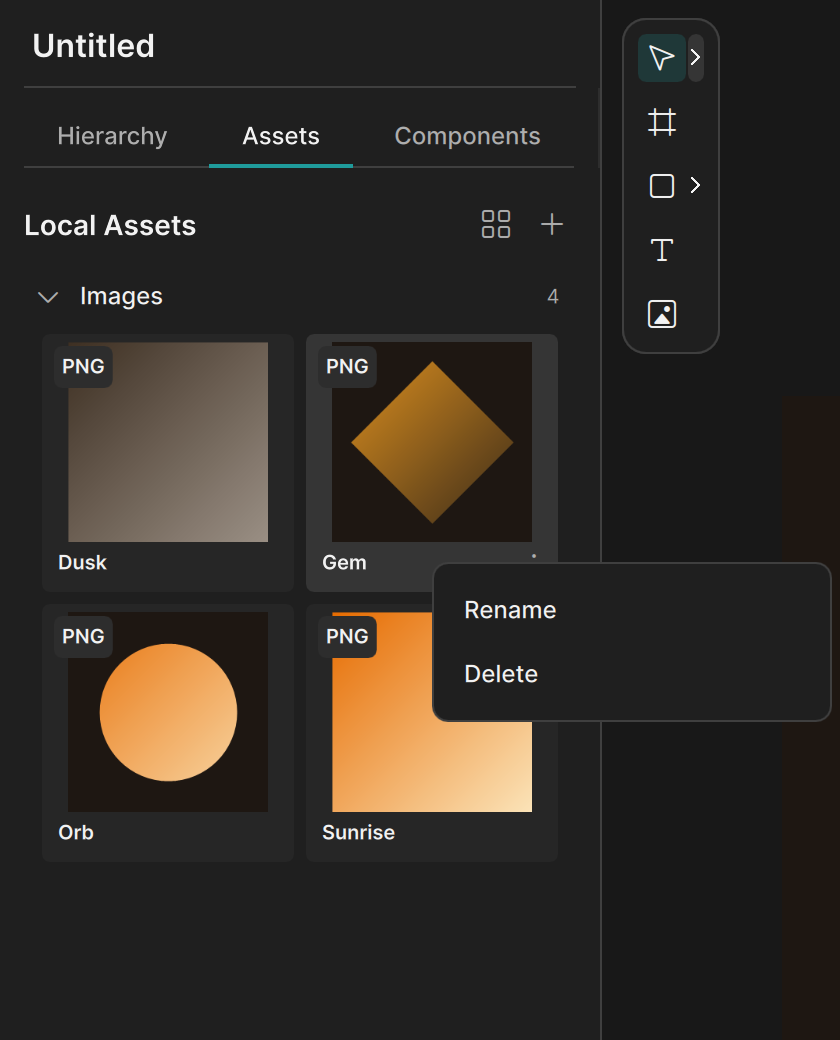
Rename an asset
Right-click the asset and choose Rename, or double-click its name. Type the new name and press Enter.
Press Esc to cancel.
- The name cannot be empty.
- The name must not be the name of another asset of the same type.
Objects that use the asset keep using it after the rename.
Delete an asset
Right-click the asset and choose Delete. Clate does not ask for confirmation, and removes the asset at once.
If an object in your project still uses the asset, Clate shows the message Asset in Use and keeps the asset. Remove the image from those objects first, then delete the asset.
Next steps
Continue with Importing and using assets.