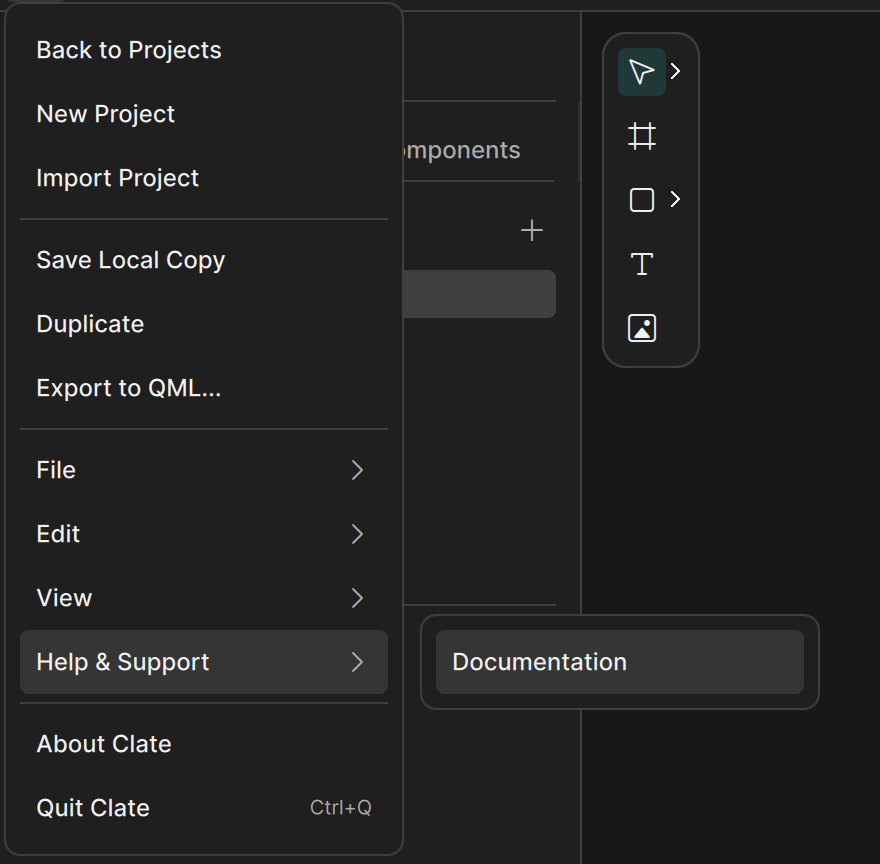
A list of the menus and the toolbar of Clate, with what each command does. Clate has no menu bar: the main menu opens
from the Clate button at the left of the toolbar.
The main menu
Click the Clate button at the left of the toolbar to open the main menu while a project is open.
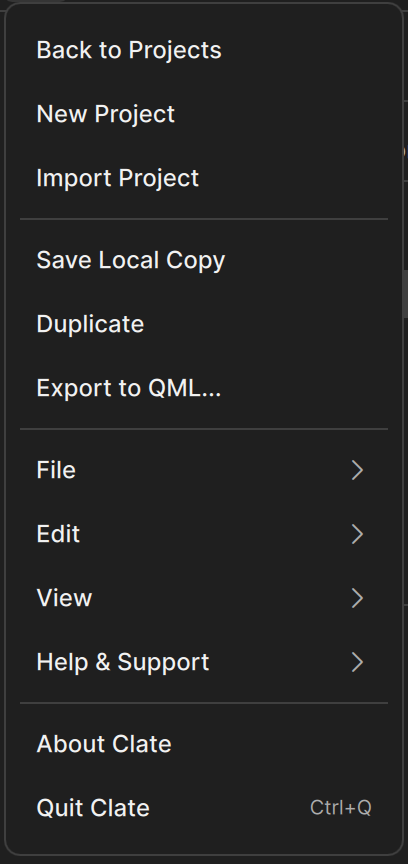
Command What it does Back to Projects Goes back to the Welcome page. The project stays open in its tab. New Project Creates a new project. See Projects and saving . Import Project Adds a project from a .clate file. Save Local Copy Saves a copy of the open project as a .clate file at a place you choose. Duplicate Makes a copy of the open project in the same folder, with the next free name. Export to QML... Exports the project to QML files. See Export to QML . File , Edit , View , Help & Support Submenus, described below. About Clate Shows the version of Clate. Quit Clate (Ctrl + Q)Closes Clate.
The main menu. File
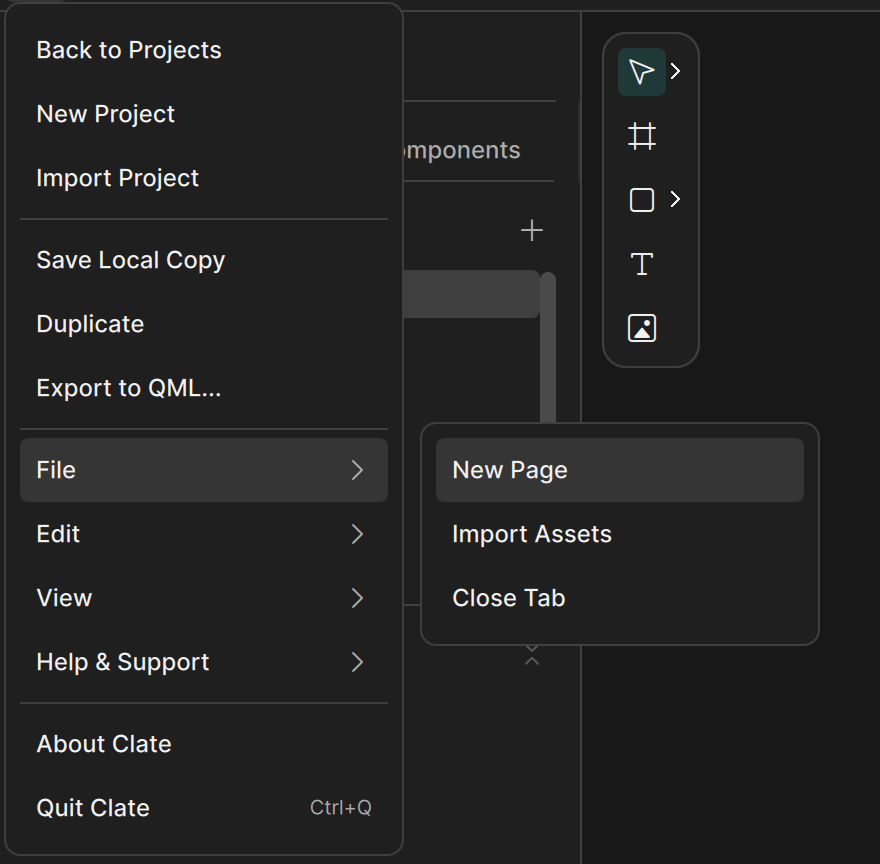
The File submenu. Edit
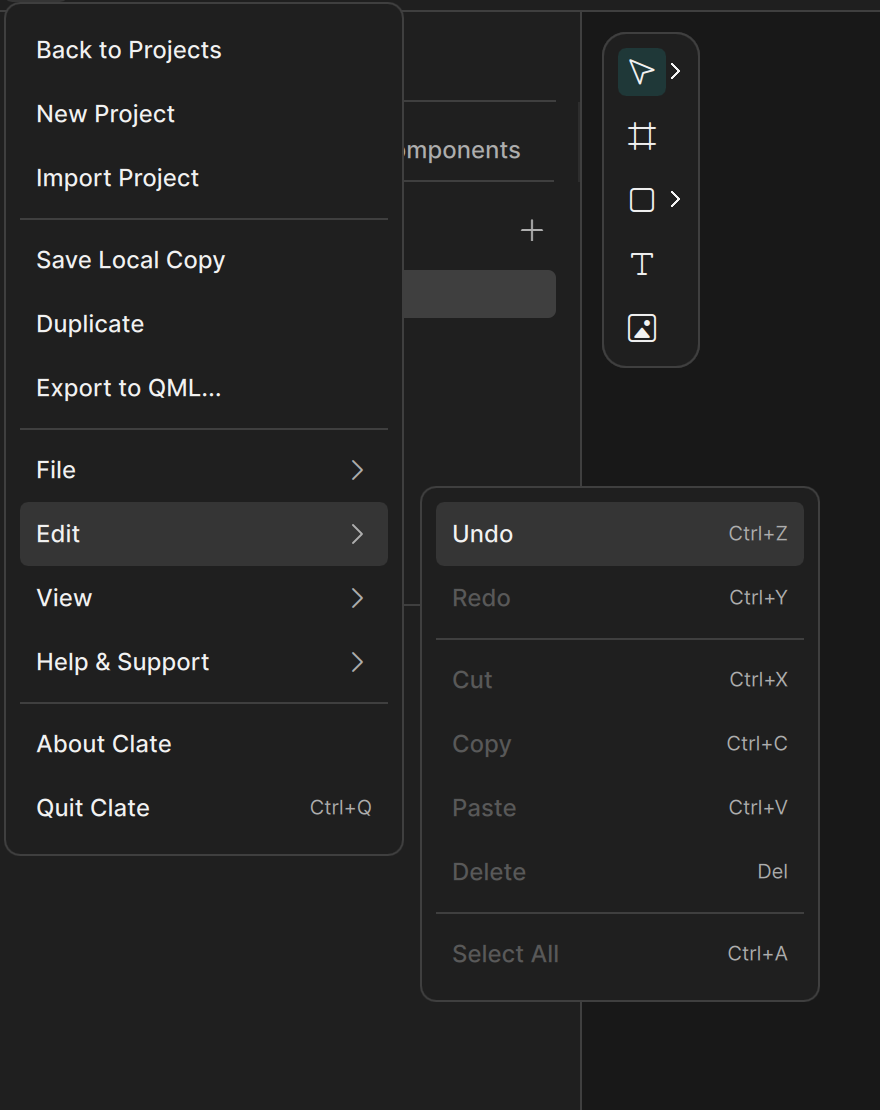
Command What it does Undo (Ctrl + Z)Undoes the last change. Redo (Ctrl + Y)Redoes the change you undid. Cut (Ctrl + X)Not available for objects. Copy (Ctrl + C)Copies the selected objects. Paste (Ctrl + V)Pastes the copied objects. See Copy, paste, and duplicate . Delete (Del)Deletes the selected objects. Select All (Ctrl + A)Selects all objects on the page.
Commands are dimmed when they do not apply, for example Copy when nothing is selected.
The Edit submenu. View
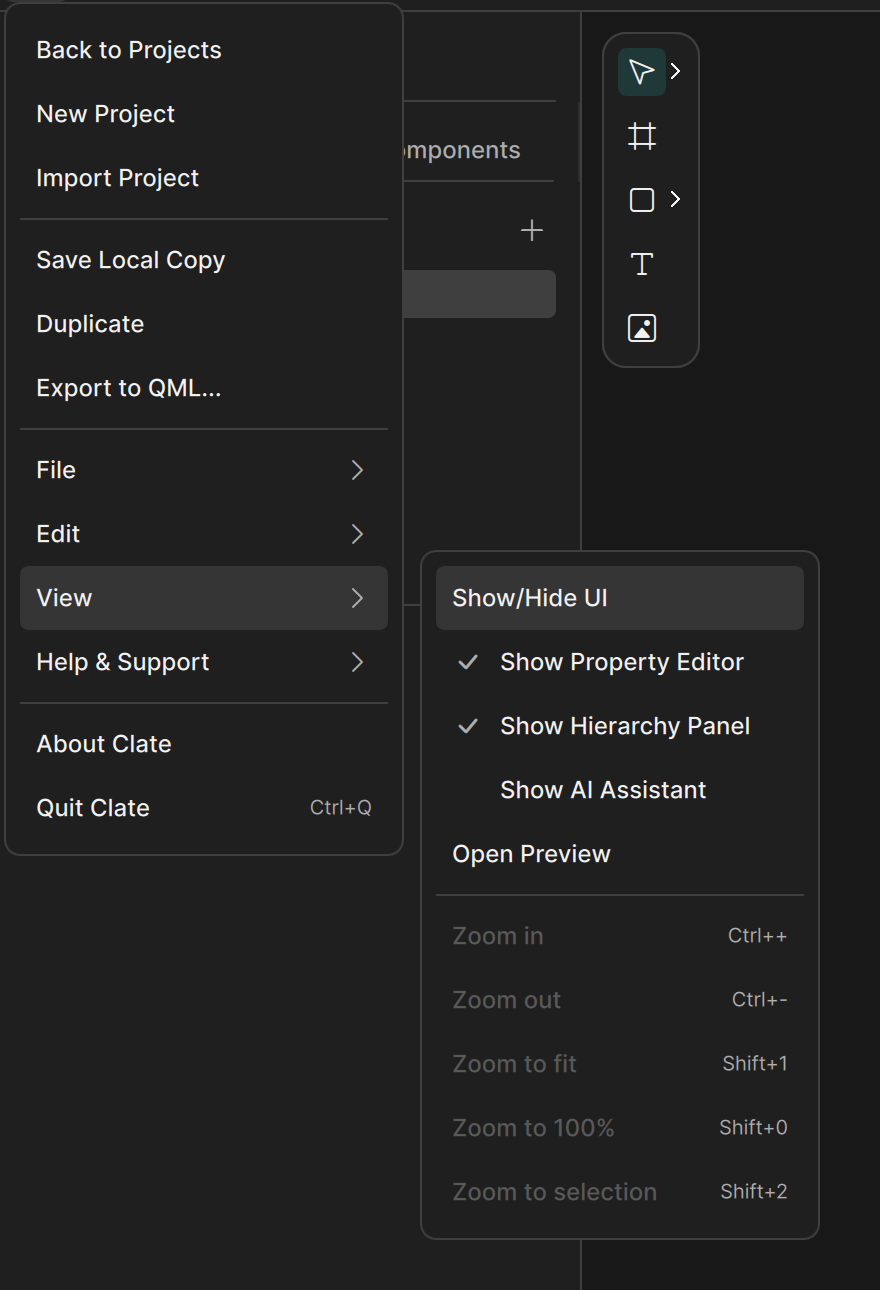
Command What it does Show/Hide UI Hides or shows all panels. Show Property Editor Shows or hides the property editor on the right. Show Hierarchy Panel Shows or hides the Hierarchy panel on the left. Show AI Assistant Shows or hides the assistant panel. See The AI Assistant . Open Preview Shows the selected layer running in its own window. See Preview . Zoom in (Ctrl + +), Zoom out (Ctrl + -)Zoom the canvas. Zoom to fit (Shift + 1), Zoom to 100% (Shift + 0), Zoom to selection (Shift + 2)Set the zoom. See Navigating the canvas .
The zoom commands only work while the canvas has the keyboard focus.
The View submenu. Help & Support
Command What it does Documentation Opens the Clate documentation in your browser.
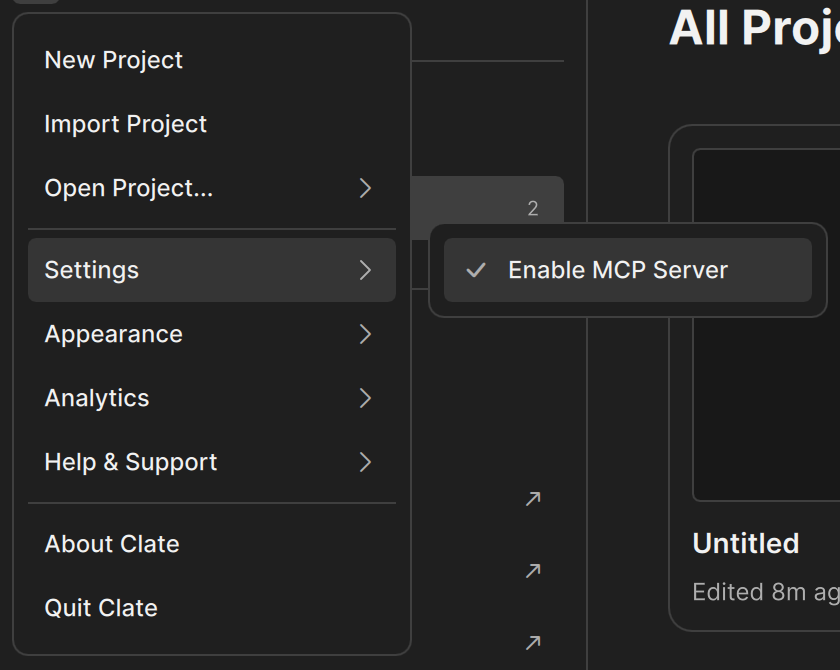
The Help & Support submenu. The Welcome page has its own main menu, behind the Clate button in the sidebar.
Command What it does New Project and Import Project The same as the buttons on the Welcome page. Open Project... Opens a project from a list of your projects. Settings › Enable MCP Server Turns the MCP server on or off. See The MCP server . Appearance Lets you choose the color theme. Help & Support , About Clate , Quit Clate The same as in the main menu.
The Welcome page menu with Settings › Enable MCP Server. Control What it does The Clate button Opens the main menu. Undo and Redo Step back and forward through your changes. Zoom field Shows the zoom and opens the zoom menu. See Navigating the canvas . AI Assistant buttonShows or hides the assistant panel. Preview Shows the selected layer running in its own window. See Preview .
Where Commands A page in the Pages panel Rename page , Move to group , Add page to New Group , Duplicate page , Delete page A group in the Pages panel Rename group and Delete group A layer in the Layers panel Rename , Copy , Paste , Move to page , Bring to Front , Send to Back , Delete The canvas Copy and Paste An asset in the Assets tab Rename and Delete A project card on the Welcome page Open , Rename , Duplicate , Save Local Copy , Remove