Navigating the canvas
The canvas is a large surface you can pan and zoom freely. Zoom with the wheel or the zoom menu, and pan with the Space key, the middle mouse button, or the Hand tool.
Zoom
With the mouse
Hold Ctrl and turn the mouse wheel to zoom in and out. Clate zooms around the pointer, so the point you are
looking at stays in place. On a touchpad you can also pinch to zoom.
With the zoom field
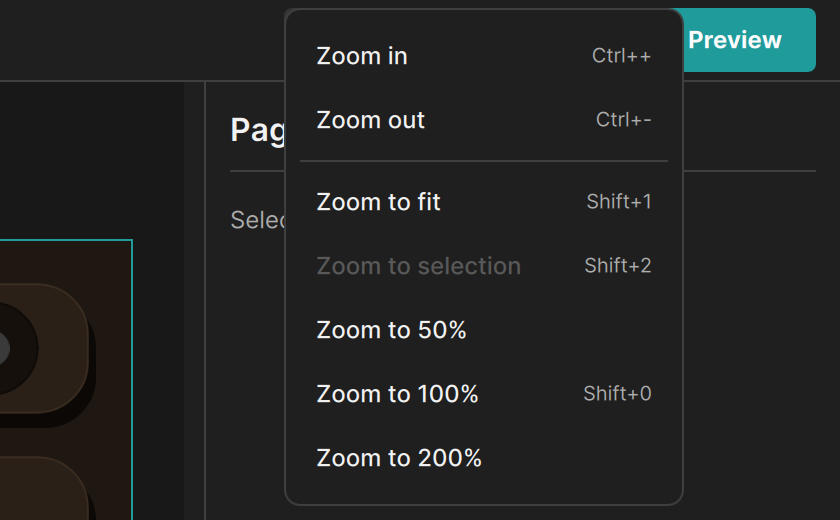
The toolbar shows the current zoom, for example 75%. Click it to open the zoom menu:
| Command | What it does |
|---|---|
| Zoom In | Goes to the next higher zoom level. |
| Zoom Out | Goes to the next lower zoom level. |
| Zoom to 50% | Sets the zoom to 50 %. |
| Zoom to 100% | Shows the design at its real size. |
| Zoom to 200% | Sets the zoom to 200 %. |
| Zoom to Fit | Shows all content of the page. |
| Zoom to Selection | Brings the selected objects into view. |
Zoom In and Zoom Out step through fixed levels between 1 % and 1600 %, for example 50 %, 66 %, 75 %, 90 %, 100 %, 110 %, 125 %, 150 %, and 200 %. The mouse wheel is not limited to these levels.
Use Zoom to Fit after you open a project or switch to another page to see everything at once, and Zoom to 100% to check the real size of your design.
Clate does not remember the zoom or the scroll position for each page. When you switch pages, the view stays as it was.
Move around
There are several ways to move the view:
| Method | How |
|---|---|
| Space key | Hold Space and drag. Release Space to return to your tool. |
| Middle mouse button | Drag with the middle mouse button pressed. |
| Hand tool | Choose Hand in the tool palette, in the flyout of the first button, and drag. Choose Move to go back. |
| Mouse wheel | Scroll up and down. |
| Touchpad | Scroll with two fingers. |
| Scroll bars | Drag the bars at the right and bottom edge of the canvas. |
The arrow keys do not move the view. They move the selected objects. See Moving, resizing, and rotating.
The size of the canvas
The canvas is large, so you rarely reach its edge. It has no rulers, guides, or grid. To see where
objects start and end, press A to show or hide the bounds of all objects.