Importing and using assets
Bring images into your project with the + button or by dragging files, then drag them onto the canvas or choose them in the property editor.
Import images
You can import images in three ways:
- Click the + button in the Assets tab. In the Add Assets dialog, select one or more image files.
- Drag image files from your file manager onto the Assets tab.
- Drag image files from your file manager directly onto the canvas. Clate imports them and places them on the canvas in one step.
Clate supports PNG, JPEG, SVG, and WebP images. The name of an asset is the name of the file without the extension. Importing is one step in the undo history.
When an asset with the same name exists
If your project already has an asset with the same name and type, Clate asks what to do. The Import Assets dialog lists the assets that already exist and asks whether to update them with the imported files or to add the imported files under a new name. Choose one of the buttons:
| Button | Result |
|---|---|
| Update | Replaces the content of the existing asset with the imported file. Everything that uses the asset shows the new image. |
| Create Copy | Keeps the existing asset and adds the imported file under a new name, for example logo 1. This is the default. |
| Cancel | Imports nothing. |
Update is the quickest way to replace an image everywhere: import the new version of the file under the same name and choose Update.
When a file cannot be imported
Clate shows the message These files were not imported and lists each file with the reason: unsupported format, or the file could not be read. The message ends with the list of supported formats. Files that can be imported are not affected.
Use an asset on the canvas
Drag an asset onto the canvas
Drag an asset from the Assets tab onto the canvas. Clate creates an image object for it:
- The new image has the name of the asset and the size of the picture in pixels.
- Clate places it where you dropped it. If you dropped it over a frame, the image becomes part of that frame. Otherwise Clate adds it to the active page.
- When you drag several assets at once, Clate places the images one after the other, each a little further down and to the right.
- Clate selects the new images.
Dropping is one step in the undo history.
Choose an image for an existing image object
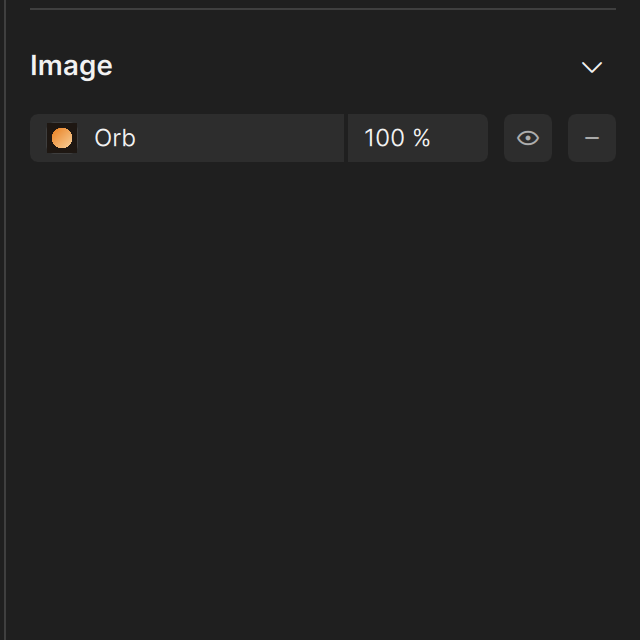
Select the image object. In the Image section of the property editor you see the image that the object shows. Click the image to choose a different one.
If you drew an empty image with the Image tool, use this section, or drag an asset onto the canvas instead. See Drawing tools.
Replace an image everywhere
Objects refer to the asset, not to a copy of the picture. To change an image for all objects that use it:
- Make sure the new file has the same name as the asset.
- Import it with the + button in the Assets tab.
- In the Import Assets dialog, choose Update.
Every object that uses the asset now shows the new image. Renaming an asset does not change the picture; the objects keep using it under its new name.