Copy, paste, and duplicate
Copy objects and paste them into a page or a frame. To duplicate a whole page, use Duplicate page.
Copy and paste objects
- Select one or more objects, on the canvas or in the Layers panel.
- Press
Ctrl+C, or choose Copy in the Edit submenu of the main menu. You can also right-click and choose Copy. - Press
Ctrl+V, or choose Paste in the Edit submenu of the main menu. You can also right-click and choose Paste.
Copy takes the selected objects with everything inside them. Paste works like this:
- If exactly one frame is selected, the pasted objects go into that frame.
- Otherwise the pasted objects go onto the active page, in front of the other objects.
- Clate selects the pasted objects, so you can move them right away.
Pasted objects keep the position they had, so they can cover the originals. Move them to see both. This is a quick way to repeat a shape, for example the next button in a row.
Copy and paste also work between pages: copy on one page, switch to another page, and paste. Paste is only available when you have copied objects.
Pasting is one step in the undo history, so Ctrl + Z removes the pasted objects.
Duplicate a page
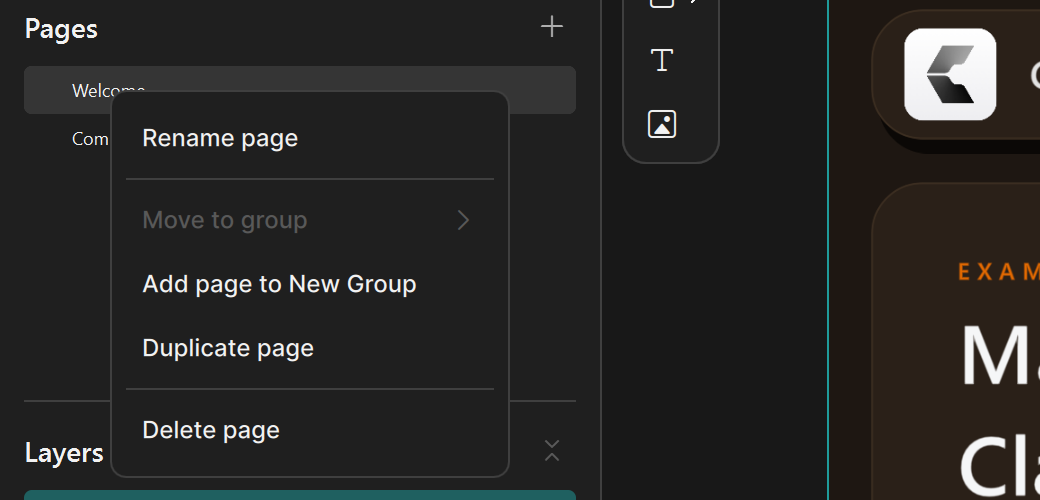
Right-click a page in the Pages panel and choose Duplicate page. The copy appears right after the original, with the next free name, and contains copies of all objects on the page.
What is not available
- Cut is not available for objects. Copy the objects, paste them, and delete the originals.
- There is no Duplicate command for single objects. Use Copy and Paste.