
自定义Qt Quick Controls
Qt Quick Controls 由一组项目构成的层次结构(树)。为了实现自定义的外观和风格,可以将每个项目的默认 QML 实现替换为自定义实现。
自定义控件
有时,您可能希望为用户界面的特定部分创建“独一无二”的外观,而在其他地方则使用统一的样式。也许您对当前使用的样式很满意,但某个按钮具有特殊的意义。
创建此按钮的第一种方法是直接在需要的位置进行定义。例如,也许你不满意“基本”样式中按钮的方形角。要将其改为圆角,你可以重写background 项,并设置Rectangle的radius属性:
import QtQuick
import QtQuick.Controls.Basic

ApplicationWindow {
    width: 400
    height: 400
    visible: true

    Button {
        id: button
        text: "A Special Button"
        background: Rectangle {
            implicitWidth: 100
            implicitHeight: 40
            color: button.down ? "#d6d6d6" : "#f6f6f6"
            border.color: "#26282a"
            border.width: 1
            radius: 4
        }
    }
}
注意:由于 任何给定样式中构成控件的各个项目都是为了协同工作而设计的,因此可能需要覆盖其他项目才能获得你想要的外观。此外,并非所有样式都可以自定义。有关更多信息,请参阅《自定义参考》中的注释。
如果计划在多个位置使用圆角按钮,第二种创建按钮的方法比较合适。该方法需要将代码移至项目中的独立 QML 文件中。
采用此方法时,我们将从“Basic”样式的Button.qml 文件中复制背景代码。该文件位于 Qt 安装目录下的以下路径中:
$QTDIR/qml/QtQuick/Controls/Basic/Button.qml
完成上述操作后,只需添加以下这一行代码:
radius: 4为避免与模块本身中的控件混淆,我们将该文件命名为MyButton.qml 。要在您的应用程序中使用该控件,请通过其文件名进行引用:
import QtQuick.Controls.Basic

ApplicationWindow {
    MyButton {
        text: qsTr("A Special Button")
    }
}
创建按钮的第三种方法在结构上更为严谨,无论是在文件系统中的位置,还是在 QML 中的使用方式上都是如此。 首先,像上面那样复制一个现有文件,但这次将其放入项目中的一个子文件夹中,该文件夹命名为(例如)controls 。要使用该控件,首先将该文件夹导入到一个命名空间中:
import QtQuick.Controls.Basic
import "controls" as MyControls

ApplicationWindow {
    MyControls.Button {
        text: qsTr("A Special Button")
    }
}现在您已经拥有了MyControls 命名空间,可以将控件命名为与Qt Quick Controls 模块中实际对应控件相同的名称。对于任何想要添加的控件,您都可以重复此过程。
这三种方法的另一个好处是,无需从头开始实现模板。
注意: 此处提到的三种方法 不适用于自定义附加的ToolTip ,因为该控件是内部创建的共享项。若要对ToolTip 进行一次性自定义,请参阅Custom Tool Tips 。若要自定义附加的ToolTip ,则必须将其作为您自己的样式的一部分提供。
创建自定义样式
创建自定义样式有多种方法。下面,我们将介绍各种方法。
样式的定义
在Qt Quick Controls 中,样式本质上是一个目录内的一组QML文件。要使样式可被使用,必须满足以下四个条件:
- 必须存在至少一个名称与控件匹配的 QML 文件(例如,
Button.qml)。 - 每个 QML 文件必须包含从QtQuick.Templates导入的相关类型作为根项。例如,Button.qml 必须包含一个 Button 模板作为其根项。
如果像上一节那样,改用从QtQuick.Controls导入的对应类型,则无法正常工作:因为我们定义的控件会尝试从自身派生。
- QML 文件旁边必须存在一个qmldir文件。下面是一个简单的
qmldir文件示例,该文件定义了一种提供按钮的样式:module MyStyle Button 2.15 Button.qml如果您使用编译时样式选择,qmldir 还应导入备用样式:
# ... import QtQuick.Controls.Basic auto对于运行时样式选择,也可以采用这种做法,而无需使用例如QQuickStyle::setFallbackStyle() 之类的函数。
此类样式的目录结构如下所示:
MyStyle ├─── Button.qml └─── qmldir - 这些文件必须位于可通过QML 导入路径找到的目录中。
例如,如果上述MyStyle目录的路径为
/home/user/MyApp/MyStyle,则必须将/home/user/MyApp添加到 QML 导入路径中。要在MyApp 中使用 MyStyle,请按名称引用它:
./MyApp -style MyStyle
样式名称必须与样式目录的大小写完全一致;不支持使用mystyle或MYSTYLE作为引用。
默认情况下,样式系统会将“Basic”样式作为未实现控件的备用样式。若要自定义或扩展任何其他内置样式,可以使用QQuickStyle 指定不同的备用样式。
这意味着您可以为自定义样式实现任意数量的控件,并将其放置在几乎任何位置。它还允许用户为您的应用程序创建自己的样式。
在Qt Quick Designer中预览自定义样式
使用上述方法,可以在Qt Quick 设计器中预览自定义样式。要做到这一点,请确保项目中包含一个qtquickcontrols2.conf文件,并且其中存在以下条目:
[Controls]
Style=MyStyle如需了解更多信息,请参阅“扁平化样式”示例。
特定于样式的 C++ 扩展
有时您可能需要使用 C++ 来扩展自定义样式。
- 如果应用程序仅使用包含该类型的样式,请通过添加QML_ELEMENT 宏并将该文件纳入您的QML模块,向QML引擎注册该类型:
qt_add_qml_module(ACoolItem
    URI MyItems
    VERSION 1.0
    SOURCES
        acoolcppitem.cpp acoolcppitem.h
)
CONFIG += qmltypes QML_IMPORT_NAME = MyItems QML_IMPORT_MAJOR_VERSION = 1如果声明该类的头文件无法从项目的包含路径中访问,您可能需要修改包含路径,以便生成的注册代码能够被编译。
INCLUDEPATH += MyItems有关详细信息,请参阅《从 C++ 定义 QML 类型》和《构建 QML 应用程序》。
- 如果使用该类型的样式是应用程序所用多种样式中的一种,请考虑将每种样式放入一个单独的模块中。这样,这些模块将按需加载。
自定义样式的注意事项
在实现自己的样式和自定义控件时,有几点需要注意,以确保应用程序尽可能高效。
避免为样式中实现的项委托分配 ID
正如《样式的定义》中所述,当您为某个控件实现自定义样式时,通常会基于该控件的相关模板开始。例如,一个样式的 `Button.qml ` 结构通常如下所示:
当您在应用程序中使用 Button 控件时,系统会创建background 和contentItem 这两个项,并将它们作为子项添加到根项Button 之下:
// Creates the Button root item, the Rectangle background,
// and the Text contentItem.
Button {
    text: qsTr("Confirm")
}
假设您随后需要对该 Button 进行一次性的自定义(如《自定义控件》中所述):
import QtQuick
import QtQuick.Controls.Basic

ApplicationWindow {
    width: 400
    height: 400
    visible: true

    Button {
        id: button
        text: "A Special Button"
        background: Rectangle {
            implicitWidth: 100
            implicitHeight: 40
            color: button.down ? "#d6d6d6" : "#f6f6f6"
            border.color: "#26282a"
            border.width: 1
            radius: 4
        }
    }
}
在 QML 中,这通常会导致默认的background 实现和一次性自定义的background 项同时被创建。Qt Quick Controls 采用了一种技术,避免同时创建这两个项,而仅创建自定义的background ,从而大大提高了控件的创建性能。
该技术依赖于样式对该项的实现中不存在ID。如果分配了 ID,该技术将无法生效,两个项都会被创建。例如,人们可能会想给background 或contentItem 分配一个 ID,以便文件中的其他对象可以引用这些项:
T.Button {
    // ...

    background: Rectangle {
        id: backgroundRect
        // ...
    }

    contentItem: Text {
        // Use backgroundRect in some way...
    }

    // ...
}
使用此代码时,每次创建具有自定义背景的 Button 实例,两个背景都会被创建,从而导致创建性能不佳。
在 Qt 5.15 之前,旧的、未使用的背景会被删除以释放与其关联的资源。但是,由于控件并不拥有这些项,因此不应删除它们。 从 Qt 5.15 开始,旧项不再被删除,因此 `backgroundRect ` 项的存活时间会比实际需要的更长——通常会一直存在直到应用程序退出。 尽管旧项会被隐藏、在视觉上脱离控件的父子关系,并从辅助功能树中移除,但在这种情况下为项分配 ID 时,务必注意这些未使用项的创建时间和内存占用情况。
避免对自定义项进行命令式赋值
上文提到的技术仅在首次以声明式方式分配项时有效,因此命令式赋值会导致孤儿项。在可能的情况下,请始终使用声明式绑定来分配自定义项。
在 QML 实现中不要导入 QtQuick.Controls
在编写样式控件实现的 QML 代码时,切勿导入QtQuick.Controls 。否则将导致 QML 编译器无法编译该 QML 文件。
实现被其他类型使用的类型
假设您在应用程序中使用了 ScrollView,并决定对其滚动条进行自定义。您可能会想直接实现一个自定义的ScrollBar.qml,并让ScrollView 自动识别该自定义的ScrollBar 。然而,这种做法并不可行。您必须同时实现ScrollBar.qml和 ScrollView.qml。
关联属性
样式通常会包含某些适用于所有控件的属性或特征。附加属性是扩展 QML 项的绝佳方式,无需修改该项所属的任何现有 C++ 代码。例如,“Material”和“Universal”两种样式都具有一个“theme”附加属性,用于控制项及其子项是在浅色主题还是深色主题下渲染。
举个例子,让我们添加一个控制高度的附加属性。我们的样式将通过投影来体现高度;高度越高,阴影越大。
第一步是在Qt Creator或 Qt Extension for Visual Studio Code 中创建一个新的Qt Quick Controls 应用程序。之后,我们在 Qt Creator或 Qt Extension for Visual Studio Code 中添加一个用于存储海拔值的 C++ 类型。由于该类型将用于我们样式支持的每个控件,并且我们可能希望在以后添加其他附加属性,因此我们将它命名为 MyStyle。以下是MyStyle.h 的内容:
#ifndef MYSTYLE_H
#define MYSTYLE_H

#include <QObject>
#include <QtQml>

class MyStyle : public QObject
{
    Q_OBJECT
    Q_PROPERTY(int elevation READ elevation WRITE setElevation NOTIFY elevationChanged)

public:
    explicit MyStyle(QObject *parent = nullptr);

    static MyStyle *qmlAttachedProperties(QObject *object);

    int elevation() const;
    void setElevation(int elevation);

signals:
    void elevationChanged();

private:
    int m_elevation;
};

QML_DECLARE_TYPEINFO(MyStyle, QML_HAS_ATTACHED_PROPERTIES)

#endif // MYSTYLE_HMyStyle.cpp:
#include "mystyle.h"

MyStyle::MyStyle(QObject *parent) :
    QObject(parent),
    m_elevation(0)
{
}

MyStyle *MyStyle::qmlAttachedProperties(QObject *object)
{
    return new MyStyle(object);
}

int MyStyle::elevation() const
{
    return m_elevation;
}

void MyStyle::setElevation(int elevation)
{
    if (elevation == m_elevation)
        return;

    m_elevation = elevation;
    emit elevationChanged();
}
MyStyle 类型的特殊之处在于,它不应被实例化,而应仅用于其关联属性。因此,我们以如下方式在main.cpp 中对其进行注册:
#include <QGuiApplication>
#include <QQmlApplicationEngine>

#include "mystyle.h"

int main(int argc, char *argv[])
{
    QGuiApplication app(argc, argv);

    qmlRegisterUncreatableType<MyStyle>("MyStyle", 1, 0, "MyStyle", "MyStyle is an attached property");

    QQmlApplicationEngine engine;
    // Make the directory containing our style known to the QML engine.
    engine.addImportPath(":/");
    engine.load(QUrl(QLatin1String("qrc:/main.qml")));

    return app.exec();
}随后,我们将$QTDIR/qml/QtQuick/Controls/Basic/ 中 Basic 样式中的Button.qml 复制到项目目录下新建的myproject 文件夹中。将新复制的Button.qml 添加到qml.qrc 中,该资源文件包含我们的 QML 文件。
接下来,我们为 Button 的background 委托添加一个阴影效果:
// ...
import QtQuick.Effects
import MyStyle
// ...

background: Rectangle {
    // ...

    layer.enabled: control.enabled && control.MyStyle.elevation > 0
    layer.effect: MultiEffect {
        shadowEnabled: true
        shadowHorizontalOffset: 3
        shadowVerticalOffset: 3
        shadowColor: control.visualFocus ? "#330066ff" : "#aaaaaa"
        shadowBlur: control.pressed ? 0.8 : 0.4
    }
}
请注意:
- 当 Button 的 elevation 为
0 - 根据按钮是否获得焦点来改变阴影的颜色
- 让阴影的大小取决于凸起效果
为了测试该附加属性,我们在main.qml 中创建了一个包含两个Button的Row :
import QtQuick
import QtQuick.Controls

import MyStyle 1.0

ApplicationWindow {
    id: window
    width: 400
    height: 400
    visible: true

    Row {
        spacing: 20
        anchors.centerIn: parent

        Button {
            text: "Button 1"
        }
        Button {
            text: "Button 2"
            MyStyle.elevation: 10
        }
    }
}其中一个按钮没有高度,另一个按钮的高度为10 。
配置完成后,我们可以运行示例。为了让应用程序使用新样式,我们将-style MyStyle 作为应用程序参数传递,但指定要使用的样式有多种方式。
最终结果:

请注意,import MyStyle 1.0 语句仅因我们使用了属于MyStyle 的附加属性才必需。即使移除该导入语句,两个按钮仍将使用我们的自定义样式。
自定义参考
以下代码片段展示了如何采用与“自定义控件”一节中相同的方法,对“基本样式”中的控件进行自定义。这些代码可作为实现自定义外观和感觉的起点。
注意: macOS和Windows样式 不适合用于自定义。相反,建议始终基于一种在所有平台上都可用的单一样式来构建自定义控件,例如Basic Style、Fusion Style、Imagine Style、Material Style 或Universal Style。 这样做可以确保无论应用程序使用哪种样式运行,其外观始终保持一致。要了解如何使用其他样式,请参阅《Qt Quick Controls 》中的“使用样式”部分。此外,您还可以创建自己的样式。
注意:修改 控件大小时, 实际内容大小通常保持不变。例如,某些样式可能会让按钮填满控件的边界,但会将CheckBox 的复选标记和文本在水平和/或垂直方向上居中。如果不需要默认的调整大小行为,请重写相应的委托。
自定义 ApplicationWindow
ApplicationWindow 由一个视觉项组成:background 。
import QtQuick
import QtQuick.Controls.Basic

ApplicationWindow {
    visible: true

    background: Rectangle {
        gradient: Gradient {
            GradientStop { position: 0; color: "#ffffff" }
            GradientStop { position: 1; color: "#c1bbf9" }
        }
    }
}
自定义 BusyIndicator
BusyIndicator 包含两个视觉项:background 和contentItem 。

import QtQuick
import QtQuick.Controls.Basic

BusyIndicator {
    id: control

    contentItem: Item {
        implicitWidth: 64
        implicitHeight: 64

        Item {
            id: item
            x: parent.width / 2 - 32
            y: parent.height / 2 - 32
            width: 64
            height: 64
            opacity: control.running ? 1 : 0

            Behavior on opacity {
                OpacityAnimator {
                    duration: 250
                }
            }

            RotationAnimator {
                target: item
                running: control.visible && control.running
                from: 0
                to: 360
                loops: Animation.Infinite
                duration: 1250
            }

            Repeater {
                id: repeater
                model: 6

                Rectangle {
                    id: delegate
                    x: item.width / 2 - width / 2
                    y: item.height / 2 - height / 2
                    implicitWidth: 10
                    implicitHeight: 10
                    radius: 5
                    color: "#21be2b"

                    required property int index

                    transform: [
                        Translate {
                            y: -Math.min(item.width, item.height) * 0.5 + 5
                        },
                        Rotation {
                            angle: delegate.index / repeater.count * 360
                            origin.x: 5
                            origin.y: 5
                        }
                    ]
                }
            }
        }
    }
}
自定义按钮
Button 包含两个视觉项:background 和contentItem 。

import QtQuick
import QtQuick.Controls.Basic

Button {
    id: control
    text: qsTr("Button")

    contentItem: Text {
        text: control.text
        font: control.font
        opacity: enabled ? 1.0 : 0.3
        color: control.down ? "#17a81a" : "#21be2b"
        horizontalAlignment: Text.AlignHCenter
        verticalAlignment: Text.AlignVCenter
        elide: Text.ElideRight
    }

    background: Rectangle {
        implicitWidth: 100
        implicitHeight: 40
        opacity: enabled ? 1 : 0.3
        border.color: control.down ? "#17a81a" : "#21be2b"
        border.width: 1
        radius: 2
    }
}
自定义复选框
CheckBox 由三个视觉控件组成:background 、contentItem 和indicator 。

import QtQuick
import QtQuick.Controls.Basic

CheckBox {
    id: control
    text: qsTr("CheckBox")
    checked: true

    indicator: Rectangle {
        implicitWidth: 26
        implicitHeight: 26
        x: control.leftPadding
        y: parent.height / 2 - height / 2
        radius: 3
        border.color: control.down ? "#17a81a" : "#21be2b"

        Rectangle {
            width: 14
            height: 14
            x: 6
            y: 6
            radius: 2
            color: control.down ? "#17a81a" : "#21be2b"
            visible: control.checked
        }
    }

    contentItem: Text {
        text: control.text
        font: control.font
        opacity: enabled ? 1.0 : 0.3
        color: control.down ? "#17a81a" : "#21be2b"
        verticalAlignment: Text.AlignVCenter
        leftPadding: control.indicator.width + control.spacing
    }
}
自定义 CheckDelegate
CheckDelegate 由三个可视化控件组成:background 、contentItem 和indicator 。

import QtQuick
import QtQuick.Controls.Basic

CheckDelegate {
    id: control
    text: qsTr("CheckDelegate")
    checked: true

    contentItem: Text {
        rightPadding: control.indicator.width + control.spacing
        text: control.text
        font: control.font
        opacity: enabled ? 1.0 : 0.3
        color: control.down ? "#17a81a" : "#21be2b"
        elide: Text.ElideRight
        verticalAlignment: Text.AlignVCenter
    }

    indicator: Rectangle {
        implicitWidth: 26
        implicitHeight: 26
        x: control.width - width - control.rightPadding
        y: control.topPadding + control.availableHeight / 2 - height / 2
        radius: 3
        color: "transparent"
        border.color: control.down ? "#17a81a" : "#21be2b"

        Rectangle {
            width: 14
            height: 14
            x: 6
            y: 6
            radius: 2
            color: control.down ? "#17a81a" : "#21be2b"
            visible: control.checked
        }
    }

    background: Rectangle {
        implicitWidth: 100
        implicitHeight: 40
        visible: control.down || control.highlighted
        color: control.down ? "#bdbebf" : "#eeeeee"
    }
}
自定义 ComboBox
ComboBox 包括background 、contentItem 、popup 、indicator 以及delegate 。

pragma ComponentBehavior: Bound

import QtQuick
import QtQuick.Controls.Basic

ComboBox {
    id: control
    model: ["First", "Second", "Third"]

    delegate: ItemDelegate {
        id: delegate

        required property var model
        required property int index

        width: control.width
        contentItem: Text {
            text: delegate.model[control.textRole]
            color: "#21be2b"
            font: control.font
            elide: Text.ElideRight
            verticalAlignment: Text.AlignVCenter
        }
        highlighted: control.highlightedIndex === index
    }

    indicator: Canvas {
        id: canvas
        x: control.width - width - control.rightPadding
        y: control.topPadding + (control.availableHeight - height) / 2
        width: 12
        height: 8
        contextType: "2d"

        Connections {
            target: control
            function onPressedChanged() { canvas.requestPaint(); }
        }

        onPaint: {
            context.reset();
            context.moveTo(0, 0);
            context.lineTo(width, 0);
            context.lineTo(width / 2, height);
            context.closePath();
            context.fillStyle = control.pressed ? "#17a81a" : "#21be2b";
            context.fill();
        }
    }

    contentItem: Text {
        leftPadding: 0
        rightPadding: control.indicator.width + control.spacing

        text: control.displayText
        font: control.font
        color: control.pressed ? "#17a81a" : "#21be2b"
        verticalAlignment: Text.AlignVCenter
        elide: Text.ElideRight
    }

    background: Rectangle {
        implicitWidth: 120
        implicitHeight: 40
        border.color: control.pressed ? "#17a81a" : "#21be2b"
        border.width: control.visualFocus ? 2 : 1
        radius: 2
    }

    popup: Popup {
        y: control.height - 1
        width: control.width
        height: Math.min(contentItem.implicitHeight, control.Window.height - topMargin - bottomMargin)
        padding: 1

        contentItem: ListView {
            clip: true
            implicitHeight: contentHeight
            model: control.popup.visible ? control.delegateModel : null
            currentIndex: control.highlightedIndex

            ScrollIndicator.vertical: ScrollIndicator { }
        }

        background: Rectangle {
            border.color: "#21be2b"
            radius: 2
        }
    }
}如ComboBox Model Roles 中所述,ComboBox 支持多种类型的模型。
由于所有模型都提供了一个名为modelData的匿名属性,因此以下表达式在所有情况下都能检索到正确的文本:
text: model[control.textRole]当您提供特定的textRole ,且模型包含提供所选角色的结构化数据时,该表达式即为常规属性查找。当您提供包含单一生成的数据(如字符串列表)的模型,且textRole 为空时,该表达式将检索modelData 。
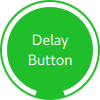
自定义 DelayButton
DelayButton 由两个视觉项组成:background 和contentItem 。
import QtQuick
import QtQuick.Controls.Basic

DelayButton {
    id: control
    checked: true
    text: qsTr("Delay\nButton")

    contentItem: Text {
        text: control.text
        font: control.font
        opacity: enabled ? 1.0 : 0.3
        color: "white"
        horizontalAlignment: Text.AlignHCenter
        verticalAlignment: Text.AlignVCenter
        elide: Text.ElideRight
    }

    background: Rectangle {
        implicitWidth: 100
        implicitHeight: 100
        opacity: enabled ? 1 : 0.3
        color: control.down ? "#17a81a" : "#21be2b"
        radius: size / 2

        readonly property real size: Math.min(control.width, control.height)
        width: size
        height: size
        anchors.centerIn: parent

        Canvas {
            id: canvas
            anchors.fill: parent

            Connections {
                target: control
                function onProgressChanged() { canvas.requestPaint(); }
            }

            onPaint: {
                var ctx = getContext("2d")
                ctx.clearRect(0, 0, width, height)
                ctx.strokeStyle = "white"
                ctx.lineWidth = parent.size / 20
                ctx.beginPath()
                var startAngle = Math.PI / 5 * 3
                var endAngle = startAngle + control.progress * Math.PI / 5 * 9
                ctx.arc(width / 2, height / 2, width / 2 - ctx.lineWidth / 2 - 2, startAngle, endAngle)
                ctx.stroke()
            }
        }
    }
}
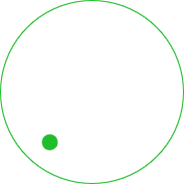
自定义“Dial”
“旋钮”由两个可视项组成:background 和handle 。
import QtQuick
import QtQuick.Controls.Basic

Dial {
    id: control
    background: Rectangle {
        x: control.width / 2 - width / 2
        y: control.height / 2 - height / 2
        implicitWidth: 140
        implicitHeight: 140
        width: Math.max(64, Math.min(control.width, control.height))
        height: width
        color: "transparent"
        radius: width / 2
        border.color: control.pressed ? "#17a81a" : "#21be2b"
        opacity: control.enabled ? 1 : 0.3
    }

    handle: Rectangle {
        id: handleItem
        x: control.background.x + control.background.width / 2 - width / 2
        y: control.background.y + control.background.height / 2 - height / 2
        width: 16
        height: 16
        color: control.pressed ? "#17a81a" : "#21be2b"
        radius: 8
        antialiasing: true
        opacity: control.enabled ? 1 : 0.3
        transform: [
            Translate {
                y: -Math.min(control.background.width, control.background.height) * 0.4 + handleItem.height / 2
            },
            Rotation {
                angle: control.angle
                origin.x: handleItem.width / 2
                origin.y: handleItem.height / 2
            }
        ]
    }
}
自定义 DoubleSpinBox
DoubleSpinBox 其自定义方式与按钮相同。
自定义抽屉
Drawer 可以包含一个名为background 的可视化控件。
background: Rectangle {
    Rectangle {
        x: parent.width - 1
        width: 1
        height: parent.height
        color: "#21be2b"
    }
}
自定义 Frame
Frame 由一个可视化项组成:background 。

import QtQuick
import QtQuick.Controls.Basic

Frame {
    background: Rectangle {
        color: "transparent"
        border.color: "#21be2b"
        radius: 2
    }

    Label {
        text: qsTr("Content goes here!")
    }
}
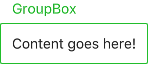
自定义 GroupBox
GroupBox 由两个可视化项组成:background 和label 。
import QtQuick
import QtQuick.Controls.Basic

GroupBox {
    id: control
    title: qsTr("GroupBox")

    background: Rectangle {
        y: control.topPadding - control.bottomPadding
        width: parent.width
        height: parent.height - control.topPadding + control.bottomPadding
        color: "transparent"
        border.color: "#21be2b"
        radius: 2
    }

    label: Label {
        x: control.leftPadding
        width: control.availableWidth
        text: control.title
        color: "#21be2b"
        elide: Text.ElideRight
    }

    Label {
        text: qsTr("Content goes here!")
    }
}
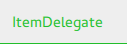
自定义 ItemDelegate
ItemDelegate 包含两个可视化项:background 和contentItem 。
import QtQuick
import QtQuick.Controls.Basic

ItemDelegate {
    id: control
    text: qsTr("ItemDelegate")

    contentItem: Text {
        rightPadding: control.spacing
        text: control.text
        font: control.font
        color: control.enabled ? (control.down ? "#17a81a" : "#21be2b") : "#bdbebf"
        elide: Text.ElideRight
        verticalAlignment: Text.AlignVCenter
    }

    background: Rectangle {
        implicitWidth: 100
        implicitHeight: 40
        opacity: enabled ? 1 : 0.3
        color: control.down ? "#dddedf" : "#eeeeee"

        Rectangle {
            width: parent.width
            height: 1
            color: control.down ? "#17a81a" : "#21be2b"
            anchors.bottom: parent.bottom
        }
    }
}
自定义标签
标签可以包含一个可视化background 项。

import QtQuick
import QtQuick.Controls.Basic

Label {
    text: qsTr("Label")
    color: "#21be2b"
}
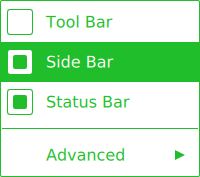
自定义菜单
- Menu 由一个可视化background 项目组成。
- MenuItem 由四个可视化项组成:background 、contentItem 、indicator 和arrow 。
- MenuSeparator 由一个可视化background 和contentItem 组成。
import QtQuick
import QtQuick.Controls.Basic

Menu {
    id: menu

    Action { text: qsTr("Tool Bar"); checkable: true }
    Action { text: qsTr("Side Bar"); checkable: true; checked: true }
    Action { text: qsTr("Status Bar"); checkable: true; checked: true }

    MenuSeparator {
        contentItem: Rectangle {
            implicitWidth: 200
            implicitHeight: 1
            color: "#21be2b"
        }
    }

    Menu {
        title: qsTr("Advanced")
        // ...
    }

    topPadding: 2
    bottomPadding: 2

    delegate: MenuItem {
        id: menuItem
        implicitWidth: 200
        implicitHeight: 40

        arrow: Canvas {
            x: parent.width - width
            implicitWidth: 40
            implicitHeight: 40
            visible: menuItem.subMenu
            onPaint: {
                var ctx = getContext("2d")
                ctx.fillStyle = menuItem.highlighted ? "#ffffff" : "#21be2b"
                ctx.moveTo(15, 15)
                ctx.lineTo(width - 15, height / 2)
                ctx.lineTo(15, height - 15)
                ctx.closePath()
                ctx.fill()
            }
        }

        indicator: Item {
            implicitWidth: 40
            implicitHeight: 40
            Rectangle {
                width: 26
                height: 26
                anchors.centerIn: parent
                visible: menuItem.checkable
                border.color: "#21be2b"
                radius: 3
                Rectangle {
                    width: 14
                    height: 14
                    anchors.centerIn: parent
                    visible: menuItem.checked
                    color: "#21be2b"
                    radius: 2
                }
            }
        }

        contentItem: Text {
            leftPadding: menuItem.indicator.width
            rightPadding: menuItem.arrow.width
            text: menuItem.text
            font: menuItem.font
            opacity: enabled ? 1.0 : 0.3
            color: menuItem.highlighted ? "#ffffff" : "#21be2b"
            horizontalAlignment: Text.AlignLeft
            verticalAlignment: Text.AlignVCenter
            elide: Text.ElideRight
        }

        background: Rectangle {
            implicitWidth: 200
            implicitHeight: 40
            opacity: enabled ? 1 : 0.3
            color: menuItem.highlighted ? "#21be2b" : "transparent"
        }
    }

    background: Rectangle {
        implicitWidth: 200
        implicitHeight: 40
        color: "#ffffff"
        border.color: "#21be2b"
        radius: 2
    }
}
自定义 MenuBar
MenuBar 可以包含一个可视化项background ,而MenuBarItem 由两个可视化项组成:background 和contentItem 。

import QtQuick
import QtQuick.Controls.Basic

MenuBar {
    id: menuBar

    Menu { title: qsTr("File") }
    Menu { title: qsTr("Edit") }
    Menu { title: qsTr("View") }
    Menu { title: qsTr("Help") }

    delegate: MenuBarItem {
        id: menuBarItem

        contentItem: Text {
            text: menuBarItem.text
            font: menuBarItem.font
            opacity: enabled ? 1.0 : 0.3
            color: menuBarItem.highlighted ? "#ffffff" : "#21be2b"
            horizontalAlignment: Text.AlignLeft
            verticalAlignment: Text.AlignVCenter
            elide: Text.ElideRight
        }

        background: Rectangle {
            implicitWidth: 40
            implicitHeight: 40
            opacity: enabled ? 1 : 0.3
            color: menuBarItem.highlighted ? "#21be2b" : "transparent"
        }
    }

    background: Rectangle {
        implicitWidth: 40
        implicitHeight: 40
        color: "#ffffff"

        Rectangle {
            color: "#21be2b"
            width: parent.width
            height: 1
            anchors.bottom: parent.bottom
        }
    }
}
自定义 PageIndicator
PageIndicator 由background 、contentItem 和delegate 组成。

import QtQuick
import QtQuick.Controls.Basic

PageIndicator {
    id: control
    count: 5
    currentIndex: 2

    delegate: Rectangle {
        implicitWidth: 8
        implicitHeight: 8

        radius: width / 2
        color: "#21be2b"

        opacity: index === control.currentIndex ? 0.95 : pressed ? 0.7 : 0.45

        required property int index

        Behavior on opacity {
            OpacityAnimator {
                duration: 100
            }
        }
    }
}
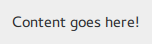
自定义 Pane
Pane 由background 组成。
import QtQuick
import QtQuick.Controls.Basic

Pane {
    background: Rectangle {
        color: "#eeeeee"
    }

    Label {
        text: qsTr("Content goes here!")
    }
}
自定义弹出窗口
弹出窗口由background 和contentItem 组成。

import QtQuick
import QtQuick.Controls.Basic

Popup {
    id: popup
    background: Rectangle {
        implicitWidth: 200
        implicitHeight: 200
        border.color: "#444"
    }
    contentItem: Column {}
}
自定义进度条
ProgressBar 由两个视觉控件组成:background 和contentItem 。

import QtQuick
import QtQuick.Controls.Basic

ProgressBar {
    id: control
    value: 0.5
    padding: 2

    background: Rectangle {
        implicitWidth: 200
        implicitHeight: 6
        color: "#e6e6e6"
        radius: 3
    }

    contentItem: Item {
        implicitWidth: 200
        implicitHeight: 4

        // Progress indicator for determinate state.
        Rectangle {
            width: control.visualPosition * parent.width
            height: parent.height
            radius: 2
            color: "#17a81a"
            visible: !control.indeterminate
        }

        // Scrolling animation for indeterminate state.
        Item {
            anchors.fill: parent
            visible: control.indeterminate
            clip: true

            Row {
                spacing: 20

                Repeater {
                    model: control.width / 40 + 1

                    Rectangle {
                        color: "#17a81a"
                        width: 20
                        height: control.height
                    }
                }
                XAnimator on x {
                    from: 0
                    to: -40
                    loops: Animation.Infinite
                    running: control.indeterminate
                }
            }
        }
    }
}
如上所示,contentItem 也会进行动画效果,以呈现indeterminate 的进度条状态。
自定义单选按钮
RadioButton 由三个视觉控件组成:background 、contentItem 和indicator 。

import QtQuick
import QtQuick.Controls.Basic

RadioButton {
    id: control
    text: qsTr("RadioButton")
    checked: true

    indicator: Rectangle {
        implicitWidth: 26
        implicitHeight: 26
        x: control.leftPadding
        y: parent.height / 2 - height / 2
        radius: 13
        border.color: control.down ? "#17a81a" : "#21be2b"

        Rectangle {
            width: 14
            height: 14
            x: 6
            y: 6
            radius: 7
            color: control.down ? "#17a81a" : "#21be2b"
            visible: control.checked
        }
    }

    contentItem: Text {
        text: control.text
        font: control.font
        opacity: enabled ? 1.0 : 0.3
        color: control.down ? "#17a81a" : "#21be2b"
        verticalAlignment: Text.AlignVCenter
        leftPadding: control.indicator.width + control.spacing
    }
}
自定义 RadioDelegate
RadioDelegate 由三个视觉项组成:background 、contentItem 和indicator 。

import QtQuick
import QtQuick.Controls.Basic

RadioDelegate {
    id: control
    text: qsTr("RadioDelegate")
    checked: true

    contentItem: Text {
        rightPadding: control.indicator.width + control.spacing
        text: control.text
        font: control.font
        opacity: enabled ? 1.0 : 0.3
        color: control.down ? "#17a81a" : "#21be2b"
        elide: Text.ElideRight
        verticalAlignment: Text.AlignVCenter
    }

    indicator: Rectangle {
        implicitWidth: 26
        implicitHeight: 26
        x: control.width - width - control.rightPadding
        y: parent.height / 2 - height / 2
        radius: 13
        color: "transparent"
        border.color: control.down ? "#17a81a" : "#21be2b"

        Rectangle {
            width: 14
            height: 14
            x: 6
            y: 6
            radius: 7
            color: control.down ? "#17a81a" : "#21be2b"
            visible: control.checked
        }
    }

    background: Rectangle {
        implicitWidth: 100
        implicitHeight: 40
        visible: control.down || control.highlighted
        color: control.down ? "#bdbebf" : "#eeeeee"
    }
}
自定义 RangeSlider
RangeSlider 由三个可视化组件组成:background 、first.handle 和second.handle 。

import QtQuick
import QtQuick.Controls.Basic

RangeSlider {
    id: control
    first.value: 0.25
    second.value: 0.75

    background: Rectangle {
        x: control.leftPadding
        y: control.topPadding + control.availableHeight / 2 - height / 2
        implicitWidth: 200
        implicitHeight: 4
        width: control.availableWidth
        height: implicitHeight
        radius: 2
        color: "#bdbebf"

        Rectangle {
            x: control.first.visualPosition * parent.width
            width: control.second.visualPosition * parent.width - x
            height: parent.height
            color: "#21be2b"
            radius: 2
        }
    }

    first.handle: Rectangle {
        x: control.leftPadding + control.first.visualPosition * (control.availableWidth - width)
        y: control.topPadding + control.availableHeight / 2 - height / 2
        implicitWidth: 26
        implicitHeight: 26
        radius: 13
        color: control.first.pressed ? "#f0f0f0" : "#f6f6f6"
        border.color: "#bdbebf"
    }

    second.handle: Rectangle {
        x: control.leftPadding + control.second.visualPosition * (control.availableWidth - width)
        y: control.topPadding + control.availableHeight / 2 - height / 2
        implicitWidth: 26
        implicitHeight: 26
        radius: 13
        color: control.second.pressed ? "#f0f0f0" : "#f6f6f6"
        border.color: "#bdbebf"
    }
}
自定义 RoundButton
RoundButton 其自定义方式与Button 相同。
自定义 ScrollBar
ScrollBar 由两个可视化控件组成:background 和contentItem 。

import QtQuick
import QtQuick.Controls.Basic

ScrollBar {
    id: control
    size: 0.3
    position: 0.2
    active: true
    orientation: Qt.Vertical

    contentItem: Rectangle {
        implicitWidth: 6
        implicitHeight: 100
        radius: width / 2
        color: control.pressed ? "#81e889" : "#c2f4c6"
        // Hide the ScrollBar when it's not needed.
        opacity: control.policy === ScrollBar.AlwaysOn || (control.active && control.size < 1.0) ? 0.75 : 0

        // Animate the changes in opacity (default duration is 250 ms).
        Behavior on opacity {
            NumberAnimation {}
        }
    }
}
自定义 ScrollIndicator
ScrollIndicator 由两个视觉项组成:background 和contentItem 。

import QtQuick
import QtQuick.Controls.Basic

ScrollIndicator {
    id: control
    size: 0.3
    position: 0.2
    active: true
    orientation: Qt.Vertical

    contentItem: Rectangle {
        implicitWidth: 2
        implicitHeight: 100
        color: "#c2f4c6"
    }
}
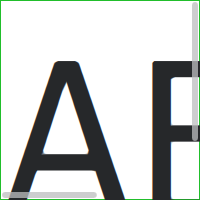
自定义 ScrollView
ScrollView 由一个background 控件以及水平和垂直滚动条组成。
ScrollView {
    id: control

    width: 200
    height: 200
    focus: true

    Label {
        text: "ABC"
        font.pixelSize: 224
    }

    ScrollBar.vertical: ScrollBar {
        parent: control
        x: control.mirrored ? 0 : control.width - width
        y: control.topPadding
        height: control.availableHeight
        active: control.ScrollBar.horizontal.active
    }

    ScrollBar.horizontal: ScrollBar {
        parent: control
        x: control.leftPadding
        y: control.height - height
        width: control.availableWidth
        active: control.ScrollBar.vertical.active
    }

    background: Rectangle {
        border.color: control.activeFocus ? "#21be2b" : "#bdbebf"
    }
}
自定义 Slider
Slider 由两个可视化控件组成:background 和handle 。

import QtQuick
import QtQuick.Controls.Basic

Slider {
    id: control
    value: 0.5

    background: Rectangle {
        x: control.leftPadding
        y: control.topPadding + control.availableHeight / 2 - height / 2
        implicitWidth: 200
        implicitHeight: 4
        width: control.availableWidth
        height: implicitHeight
        radius: 2
        color: "#bdbebf"

        Rectangle {
            width: control.visualPosition * parent.width
            height: parent.height
            color: "#21be2b"
            radius: 2
        }
    }

    handle: Rectangle {
        x: control.leftPadding + control.visualPosition * (control.availableWidth - width)
        y: control.topPadding + control.availableHeight / 2 - height / 2
        implicitWidth: 26
        implicitHeight: 26
        radius: 13
        color: control.pressed ? "#f0f0f0" : "#f6f6f6"
        border.color: "#bdbebf"
    }
}
自定义 SpinBox
SpinBox 由四个可视化控件组成:background 、contentItem 、up indicator 和down indicator 。

import QtQuick
import QtQuick.Controls.Basic

SpinBox {
    id: control
    value: 50
    editable: true

    contentItem: TextInput {
        z: 2
        text: control.textFromValue(control.value, control.locale)

        font: control.font
        color: "#21be2b"
        selectionColor: "#21be2b"
        selectedTextColor: "#ffffff"
        horizontalAlignment: Qt.AlignHCenter
        verticalAlignment: Qt.AlignVCenter

        readOnly: !control.editable
        validator: control.validator
        inputMethodHints: Qt.ImhFormattedNumbersOnly
    }

    up.indicator: Rectangle {
        x: control.mirrored ? 0 : parent.width - width
        height: parent.height
        implicitWidth: 40
        implicitHeight: 40
        color: control.up.pressed ? "#e4e4e4" : "#f6f6f6"
        border.color: enabled ? "#21be2b" : "#bdbebf"

        Text {
            text: "+"
            font.pixelSize: control.font.pixelSize * 2
            color: "#21be2b"
            anchors.fill: parent
            fontSizeMode: Text.Fit
            horizontalAlignment: Text.AlignHCenter
            verticalAlignment: Text.AlignVCenter
        }
    }

    down.indicator: Rectangle {
        x: control.mirrored ? parent.width - width : 0
        height: parent.height
        implicitWidth: 40
        implicitHeight: 40
        color: control.down.pressed ? "#e4e4e4" : "#f6f6f6"
        border.color: enabled ? "#21be2b" : "#bdbebf"

        Text {
            text: "-"
            font.pixelSize: control.font.pixelSize * 2
            color: "#21be2b"
            anchors.fill: parent
            fontSizeMode: Text.Fit
            horizontalAlignment: Text.AlignHCenter
            verticalAlignment: Text.AlignVCenter
        }
    }

    background: Rectangle {
        implicitWidth: 140
        border.color: "#bdbebf"
    }
}
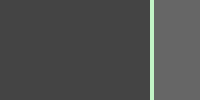
自定义 SplitView
SplitView {
    id: splitView
    anchors.fill: parent

    handle: Rectangle {
        implicitWidth: 4
        implicitHeight: 4
        color: SplitHandle.pressed ? "#81e889"
            : (SplitHandle.hovered ? Qt.lighter("#c2f4c6", 1.1) : "#c2f4c6")
    }

    Rectangle {
        implicitWidth: 150
        color: "#444"
    }
    Rectangle {
        implicitWidth: 50
        color: "#666"
    }
}
自定义 StackView
StackView 可以包含一个可视化background 项,并允许自定义用于“推送”、“弹出”和“替换”操作的过渡效果。
import QtQuick
import QtQuick.Controls.Basic

StackView {
    id: control

    popEnter: Transition {
        XAnimator {
            from: (control.mirrored ? -1 : 1) * -control.width
            to: 0
            duration: 400
            easing.type: Easing.OutCubic
        }
    }

    popExit: Transition {
        XAnimator {
            from: 0
            to: (control.mirrored ? -1 : 1) * control.width
            duration: 400
            easing.type: Easing.OutCubic
        }
    }
}
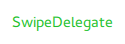
自定义 SwipeDelegate
SwipeDelegate 由六个可视化项组成:background 、contentItem 、indicator 、swipe.left 、swipe.right 以及swipe.behind 。
import QtQuick
import QtQuick.Controls.Basic

SwipeDelegate {
    id: control
    text: qsTr("SwipeDelegate")

    Component {
        id: component

        Rectangle {
            color: SwipeDelegate.pressed ? "#333" : "#444"
            width: parent.width
            height: parent.height
            clip: true

            Label {
                text: qsTr("Press me!")
                color: "#21be2b"
                anchors.centerIn: parent
            }
        }
    }

    swipe.left: component
    swipe.right: component

    contentItem: Text {
        text: control.text
        font: control.font
        color: control.enabled ? (control.down ? "#17a81a" : "#21be2b") : "#bdbebf"
        elide: Text.ElideRight
        verticalAlignment: Text.AlignVCenter

        Behavior on x {
            enabled: !control.down
            NumberAnimation {
                easing.type: Easing.InOutCubic
                duration: 400
            }
        }
    }
}
自定义 SwipeView
SwipeView 可以包含一个可视化background 控件。导航功能由contentItem 实现。
import QtQuick
import QtQuick.Controls.Basic

SwipeView {
    id: control

    background: Rectangle {
        color: "#eeeeee"
    }
}
自定义 Switch
Switch 由三个视觉控件组成:background 、contentItem 和indicator 。

import QtQuick
import QtQuick.Controls.Basic

Switch {
    id: control
    text: qsTr("Switch")

    indicator: Rectangle {
        implicitWidth: 48
        implicitHeight: 26
        x: control.leftPadding
        y: parent.height / 2 - height / 2
        radius: 13
        color: control.checked ? "#17a81a" : "#ffffff"
        border.color: control.checked ? "#17a81a" : "#cccccc"

        Rectangle {
            x: control.checked ? parent.width - width : 0
            width: 26
            height: 26
            radius: 13
            color: control.down ? "#cccccc" : "#ffffff"
            border.color: control.checked ? (control.down ? "#17a81a" : "#21be2b") : "#999999"
        }
    }

    contentItem: Text {
        text: control.text
        font: control.font
        opacity: enabled ? 1.0 : 0.3
        color: control.down ? "#17a81a" : "#21be2b"
        verticalAlignment: Text.AlignVCenter
        leftPadding: control.indicator.width + control.spacing
    }
}
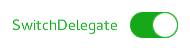
自定义 SwitchDelegate
SwitchDelegate 包含三个可视化控件:background 、contentItem 和indicator 。
import QtQuick
import QtQuick.Controls.Basic

SwitchDelegate {
    id: control
    text: qsTr("SwitchDelegate")
    checked: true

    contentItem: Text {
        rightPadding: control.indicator.width + control.spacing
        text: control.text
        font: control.font
        opacity: enabled ? 1.0 : 0.3
        color: control.down ? "#17a81a" : "#21be2b"
        elide: Text.ElideRight
        verticalAlignment: Text.AlignVCenter
    }

    indicator: Rectangle {
        implicitWidth: 48
        implicitHeight: 26
        x: control.width - width - control.rightPadding
        y: parent.height / 2 - height / 2
        radius: 13
        color: control.checked ? "#17a81a" : "transparent"
        border.color: control.checked ? "#17a81a" : "#cccccc"

        Rectangle {
            x: control.checked ? parent.width - width : 0
            width: 26
            height: 26
            radius: 13
            color: control.down ? "#cccccc" : "#ffffff"
            border.color: control.checked ? (control.down ? "#17a81a" : "#21be2b") : "#999999"
        }
    }

    background: Rectangle {
        implicitWidth: 100
        implicitHeight: 40
        visible: control.down || control.highlighted
        color: control.down ? "#bdbebf" : "#eeeeee"
    }
}
自定义 TabBar
TabBar 包含两个视觉控件:background 和contentItem 。

import QtQuick
import QtQuick.Controls.Basic

TabBar {
    id: control

    background: Rectangle {
        color: "#eeeeee"
    }

    TabButton {
        text: qsTr("Home")
    }
    TabButton {
        text: qsTr("Discover")
    }
    TabButton {
        text: qsTr("Activity")
    }
}
自定义 TabButton
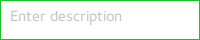
自定义 TextArea
TextArea 由一个background 控件组成。
import QtQuick
import QtQuick.Controls.Basic

TextArea {
    id: control
    placeholderText: qsTr("Enter description")

    background: Rectangle {
        implicitWidth: 200
        implicitHeight: 40
        border.color: control.enabled ? "#21be2b" : "transparent"
    }
}
自定义 TextField
TextField 由一个background 控件组成。

import QtQuick
import QtQuick.Controls.Basic

TextField {
    id: control
    placeholderText: qsTr("Enter description")

    background: Rectangle {
        implicitWidth: 200
        implicitHeight: 40
        color: control.enabled ? "transparent" : "#353637"
        border.color: control.enabled ? "#21be2b" : "transparent"
    }
}
自定义 ToolBar
ToolBar 包含一个可视化项:background 。

ToolBar {
    id: control

    background: Rectangle {
        implicitHeight: 40
        color: "#eeeeee"

        Rectangle {
            width: parent.width
            height: 1
            anchors.bottom: parent.bottom
            color: "transparent"
            border.color: "#21be2b"
        }
    }

    RowLayout {
        anchors.fill: parent
        ToolButton {
            text: qsTr("Undo")
        }
        ToolButton {
            text: qsTr("Redo")
        }
    }
}
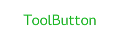
自定义工具按钮
ToolButton 包含两个可视化项:background 和contentItem 。
import QtQuick
import QtQuick.Controls.Basic

ToolButton {
    id: control
    text: qsTr("ToolButton")
    width: 120

    contentItem: Text {
        text: control.text
        font: control.font
        opacity: enabled ? 1.0 : 0.3
        color: control.down ? "#17a81a" : "#21be2b"
        horizontalAlignment: Text.AlignHCenter
        verticalAlignment: Text.AlignVCenter
        elide: Text.ElideRight
    }

    background: Rectangle {
        implicitWidth: 40
        implicitHeight: 40
        color: Qt.darker("#33333333", control.enabled && (control.checked || control.highlighted) ? 1.5 : 1.0)
        opacity: enabled ? 1 : 0.3
        visible: control.down || (control.enabled && (control.checked || control.highlighted))
    }
}
自定义工具栏分隔符
ToolSeparator 由两个可视化项组成:background 和contentItem 。

ToolBar {
    RowLayout {
        anchors.fill: parent

        ToolButton {
            text: qsTr("Action 1")
        }
        ToolButton {
            text: qsTr("Action 2")
        }

        ToolSeparator {
            padding: vertical ? 10 : 2
            topPadding: vertical ? 2 : 10
            bottomPadding: vertical ? 2 : 10

            contentItem: Rectangle {
                implicitWidth: parent.vertical ? 1 : 24
                implicitHeight: parent.vertical ? 24 : 1
                color: "#c3c3c3"
            }
        }

        ToolButton {
            text: qsTr("Action 3")
        }
        ToolButton {
            text: qsTr("Action 4")
        }

        Item {
            Layout.fillWidth: true
        }
    }
}
自定义工具提示
ToolTip 由两个视觉项组成:background 和contentItem 。
import QtQuick
import QtQuick.Controls.Basic

ToolTip {
    id: control
    text: qsTr("A descriptive tool tip of what the button does")

    contentItem: Text {
        text: control.text
        font: control.font
        color: "#21be2b"
    }

    background: Rectangle {
        border.color: "#21be2b"
    }
}
注意:若要 自定义attached ToolTip ,必须将其作为您自定义样式的一部分提供。若要对ToolTip 进行一次性自定义,请参阅Custom Tool Tips 。
自定义 Tumbler
Tumbler 由三个视觉元素组成:background 、contentItem 和delegate 。

import QtQuick
import QtQuick.Controls.Basic

Tumbler {
    id: control
    model: 15

    background: Item {
        Rectangle {
            opacity: control.enabled ? 0.2 : 0.1
            border.color: "#000000"
            width: parent.width
            height: 1
            anchors.top: parent.top
        }

        Rectangle {
            opacity: control.enabled ? 0.2 : 0.1
            border.color: "#000000"
            width: parent.width
            height: 1
            anchors.bottom: parent.bottom
        }
    }

    delegate: Text {
        text: qsTr("Item %1").arg(modelData + 1)
        font: control.font
        horizontalAlignment: Text.AlignHCenter
        verticalAlignment: Text.AlignVCenter
        opacity: 1.0 - Math.abs(Tumbler.displacement) / (control.visibleItemCount / 2)

        required property var modelData
        required property int index
    }

    Rectangle {
        anchors.horizontalCenter: control.horizontalCenter
        y: control.height * 0.4
        width: 40
        height: 1
        color: "#21be2b"
    }

    Rectangle {
        anchors.horizontalCenter: control.horizontalCenter
        y: control.height * 0.6
        width: 40
        height: 1
        color: "#21be2b"
    }
}
若要定义自己的 contentItem,请使用ListView 或PathView 作为根项。对于包裹式 Tumbler,请使用PathView :
Tumbler {
    id: tumbler

    contentItem: PathView {
        id: pathView
        model: tumbler.model
        delegate: tumbler.delegate
        clip: true
        pathItemCount: tumbler.visibleItemCount + 1
        preferredHighlightBegin: 0.5
        preferredHighlightEnd: 0.5
        dragMargin: width / 2

        path: Path {
            startX: pathView.width / 2
            startY: -pathView.delegateHeight / 2
            PathLine {
                x: pathView.width / 2
                y: pathView.pathItemCount * pathView.delegateHeight - pathView.delegateHeight / 2
            }
        }

        property real delegateHeight: tumbler.availableHeight / tumbler.visibleItemCount
    }
}
对于不自动换行的 Tumbler,请使用ListView :
Tumbler {
    id: tumbler

    contentItem: ListView {
        model: tumbler.model
        delegate: tumbler.delegate

        snapMode: ListView.SnapToItem
        highlightRangeMode: ListView.StrictlyEnforceRange
        preferredHighlightBegin: height / 2 - (height / tumbler.visibleItemCount / 2)
        preferredHighlightEnd: height / 2 + (height / tumbler.visibleItemCount / 2)
        clip: true
    }
}
自定义 TableViewDelegate
TableViewDelegate 继承自ItemDelegate ,这意味着它由两个视觉项组成:background 和contentItem 。
如果您的需求超出了默认编辑委托所提供的功能范围,您可以随时将自定义的编辑委托分配给editDelegate 。
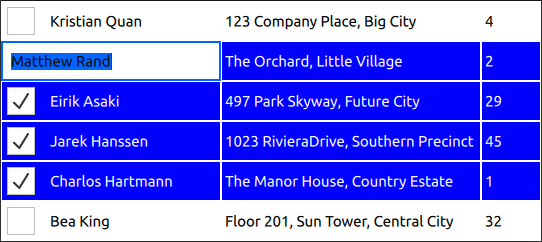
delegate: TableViewDelegate {
    id: tableCell

    checked: column === 0 ? checkBox.checked : tableView.itemAtIndex(tableView.index(row, 0)).checked
    selected: checked

    background: Item {
        Rectangle {
            anchors.fill: parent
            anchors.margins: tableCell.current ? 3 : 1
            color: tableCell.selected ? "blue" : "white"
        }

        Rectangle {
            anchors.fill: parent
            color: "transparent"
            border.color: "darkblue"
            border.width: tableCell.current ? 2 : 0
        }
    }

    contentItem: Item {
        implicitHeight: 40
        visible: !tableCell.editing

        RowLayout {
            anchors.fill: parent

            CheckBox {
                id: checkBox
                implicitWidth: height
                Layout.fillHeight: true
                checked: false
                visible: tableCell.column === 0
            }

            Text {
                Layout.leftMargin: 4
                Layout.fillWidth: true
                Layout.fillHeight: true
                verticalAlignment: Text.AlignVCenter
                color: tableCell.selected ? "white" : "black"
                text: tableCell.model.display
            }
        }
    }

    TableView.editDelegate: FocusScope {
        width: parent.width
        height: parent.height

        TableView.onCommit: {
            let qaim = tableCell.tableView.model
            if (!qaim)
                return
            const index = qaim.index(tableCell.row, tableCell.column)
            // instead of the edit role, any custom role supported by the model can be checked
            // e.g. if (!tableCell.checked || !tableCell.model.customRole)
            if (!tableCell.checked || !tableCell.model.edit)
                return
            // instead of the edit role, any custom role supported by the model can be set
            // e.g. tableCell.model.customRole = textField.text
            tableCell.model.edit = textField.text
            tableCell.model.display = textField.text
        }

        Component.onCompleted: textField.selectAll()

        TextField {
            id: textField
            anchors.fill: parent
            text: tableCell.model.edit ?? tableCell.model.display ?? ""
            focus: true
        }
    }
}
自定义 HeaderViewDelegate
HeaderViewDelegate 继承自TableViewDelegate ,这意味着它由两个视图项组成:background 和contentItem 。您可以随时使用任意视图项对它们进行自定义。
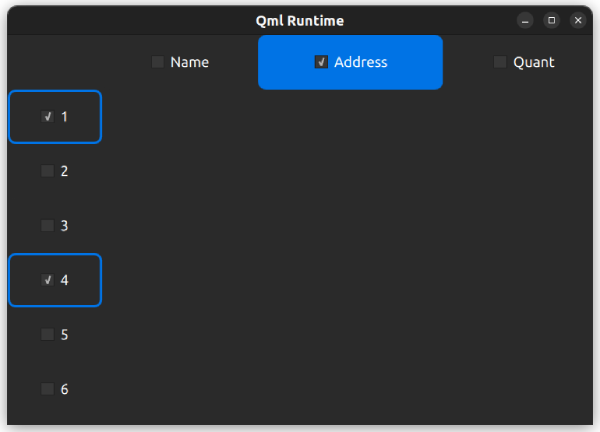
以下是一个自定义水平标题视图委托的示例:
delegate: HorizontalHeaderViewDelegate {
    id: horizontalDelegate

    required property int index
    required property string modelData

    background: Rectangle {
        height: horizontalDelegate.height
        color: columnCheckBox.checked ? palette.highlight : palette.base
        radius: 8
    }

    contentItem: Item {
        implicitWidth: columnCheckBox.implicitWidth * 2
        implicitHeight: 40

        CheckBox {
            id: columnCheckBox
            anchors.centerIn: parent
            text: horizontalDelegate.modelData
            Component.onCompleted: checked = horizontalDelegate.index === 1
        }
    }
}
以下是自定义垂直标题视图委托的示例:
delegate: VerticalHeaderViewDelegate {
    id: verticalDelegate

    required property int index

    background: Rectangle {
        height: verticalDelegate.height
        color: palette.base
        border.width: rowCheckBox.checked ? 2 : 0
        border.color: palette.highlight
        radius: 8
    }

    contentItem: Item {
        implicitWidth: rowCheckBox.implicitWidth * 2
        implicitHeight: 40

        CheckBox {
            id: rowCheckBox
            anchors.centerIn: parent
            text: verticalDelegate.index + 1
            Component.onCompleted: checked = verticalDelegate.index % 3 === 0
        }
    }
}
使用 StyleKit 设置控件样式
Qt Labs的StyleKit模块提供了一组用于为Qt Quick Controls 设置样式的QML类型,该模块基于Qt Quick Templates 2构建。它允许您通过单个Style对象为所有控件定义完整的视觉样式,包括对主题、基于状态的样式设置以及过渡效果的支持。 StyleKit 会自动处理底层的模板实现,让您能够完全专注于颜色、尺寸、边框和阴影等视觉方面。
© 2026 The Qt Company Ltd. Documentation contributions included herein are the copyrights of their respective owners. The documentation provided herein is licensed under the terms of the GNU Free Documentation License version 1.3 as published by the Free Software Foundation. Qt and respective logos are trademarks of The Qt Company Ltd. in Finland and/or other countries worldwide. All other trademarks are property of their respective owners.
