
カレンダーウィジェットの例
このカレンダーウィジェットの例では、QCalendarWidget の使用方法を示しています。
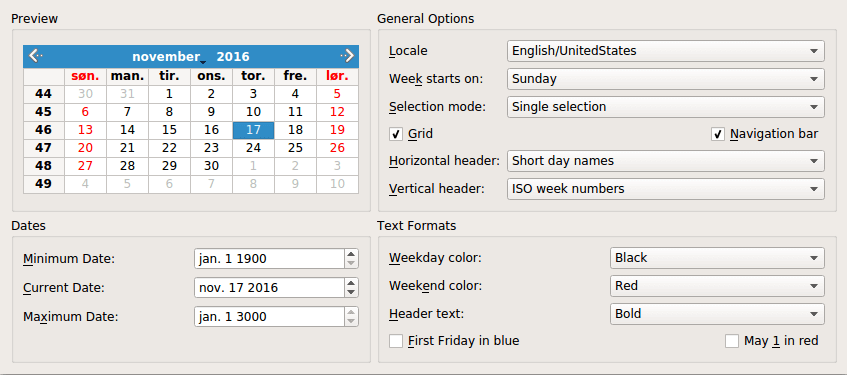
QCalendarWidget 一度に1ヶ月分のカレンダーを表示し、ユーザーが日付を選択できるようにします。このカレンダーは、表示される月を変更するためのナビゲーションバー、各セルがその月の1日を表すグリッド、および曜日の名前と週番号を表示する2つのヘッダーという4つのコンポーネントで構成されています。
カレンダーウィジェットの例では、QCalendarWidget が表示され、ユーザーはQComboBox、QCheckBox、およびQDateEditを使用して、その外観や動作を設定できます。さらに、ユーザーは個々の日付やヘッダーの書式設定を変更することもできます。
QCalendarWidget のプロパティは、以下の表にまとめられています。
| プロパティ | 説明 |
|---|---|
| selectedDate | 現在選択されている日付。 |
| minimumDate | 選択可能な最も早い日付。 |
| maximumDate | 選択可能な最も遅い日付。 |
| firstDayOfWeek | 週の最初の日として表示される日(通常は日曜日または月曜日)。 |
| gridVisible | グリッドを表示するかどうか。 |
| selectionMode | ユーザーが日付を選択できるかどうか。 |
| horizontalHeaderFormat | 横方向のヘッダーに表示される曜日の表記形式(例:「M」、「Mon」、または「Monday」)。 |
| verticalHeaderFormat | 縦方向のヘッダーの表示形式。 |
| navigationBarVisible | カレンダーウィジェット上部のナビゲーションバーを表示するかどうか。 |
この例は、1つのクラス「Window 」で構成されています。このクラスは、QCalendarWidget および、ユーザーがQCalendarWidget を設定できるその他のウィジェットを作成し、レイアウトを行います。
ウィンドウクラスの定義
Window クラスの定義は次のとおりです。
class Window : public QWidget
{
    Q_OBJECT

public:
    Window(QWidget *parent = nullptr);

private slots:
    void localeChanged(int index);
    void firstDayChanged(int index);
    void selectionModeChanged(int index);
    void horizontalHeaderChanged(int index);
    void verticalHeaderChanged(int index);
    void selectedDateChanged();
    void minimumDateChanged(QDate date);
    void maximumDateChanged(QDate date);
    void weekdayFormatChanged();
    void weekendFormatChanged();
    void reformatHeaders();
    void reformatCalendarPage();

private:
    void createPreviewGroupBox();
    void createGeneralOptionsGroupBox();
    void createDatesGroupBox();
    void createTextFormatsGroupBox();
    QComboBox *createColorComboBox();

    QGroupBox *previewGroupBox;
    QGridLayout *previewLayout;
    QCalendarWidget *calendar;

    QGroupBox *generalOptionsGroupBox;
    QLabel *localeLabel;
    QLabel *firstDayLabel;
    ...
    QCheckBox *mayFirstCheckBox;
};
独立したウィンドウを表すクラスによくあることですが、APIの大部分はprivateです。プライベートメンバーについては、実装の中で実際に登場した際に順次解説していきます。
Windowクラスの実装
それでは、コンストラクタから始めて、クラスの実装を確認していきましょう:
Window::Window(QWidget *parent)
    : QWidget(parent)
{
    createPreviewGroupBox();
    createGeneralOptionsGroupBox();
    createDatesGroupBox();
    createTextFormatsGroupBox();

    QGridLayout *layout = new QGridLayout;
    layout->addWidget(previewGroupBox, 0, 0);
    layout->addWidget(generalOptionsGroupBox, 0, 1);
    layout->addWidget(datesGroupBox, 1, 0);
    layout->addWidget(textFormatsGroupBox, 1, 1);
    layout->setSizeConstraint(QLayout::SetFixedSize);
    setLayout(layout);

    previewLayout->setRowMinimumHeight(0, calendar->sizeHint().height());
    previewLayout->setColumnMinimumWidth(0, calendar->sizeHint().width());

    setWindowTitle(tr("Calendar Widget"));
}まず、後述する4つのプライベート関数create...GroupBox() を使用して、4つのQGroupBoxとそれらの子ウィジェット(QCalendarWidget を含む)を作成します。次に、グループボックスをQGridLayout に配置します。
ユーザーがウィンドウのサイズを変更できないようにするため、グリッドレイアウトのリサイズポリシーをQLayout::SetFixedSize に設定します。このモードでは、ウィンドウのサイズは、その内容ウィジェットのサイズヒントに基づいてQGridLayout によって自動的に設定されます。
QCalendarWidget のプロパティを変更するたびに(たとえば、ナビゲーションバー、垂直ヘッダー、またはグリッドを非表示にするなど)、ウィンドウが自動的にリサイズされないようにするため、行0の最小高さと列0の最小幅をQCalendarWidget の初期サイズに設定します。
それでは、createPreviewGroupBox() 関数について見ていきましょう:
void Window::createPreviewGroupBox()
{
    previewGroupBox = new QGroupBox(tr("Preview"));

    calendar = new QCalendarWidget;
    calendar->setMinimumDate(QDate(1900, 1, 1));
    calendar->setMaximumDate(QDate(3000, 1, 1));
    calendar->setGridVisible(true);

    connect(calendar, &QCalendarWidget::currentPageChanged,
            this, &Window::reformatCalendarPage);

    previewLayout = new QGridLayout;
    previewLayout->addWidget(calendar, 0, 0, Qt::AlignCenter);
    previewGroupBox->setLayout(previewLayout);
}
Preview グループボックスには、QCalendarWidget という1つのウィジェットのみが含まれています。これをセットアップし、そのcurrentPageChanged()シグナルをreformatCalendarPage() スロットに接続することで、新しいページが作成されるたびに、ユーザーが指定した書式が適用されるようにします。
createGeneralOptionsGroupBox() 関数はやや大規模であり、いくつかのウィジェットが同様の方法でセットアップされています。ここではその実装の一部を取り上げ、残りは省略します:
void Window::createGeneralOptionsGroupBox()
{
    generalOptionsGroupBox = new QGroupBox(tr("General Options"));

    localeCombo = new QComboBox;
    int curLocaleIndex = -1;
    int index = 0;
    for (int _lang = QLocale::C; _lang <= QLocale::LastLanguage; ++_lang) {
        QLocale::Language lang = static_cast<QLocale::Language>(_lang);
        const auto locales =
            QLocale::matchingLocales(lang, QLocale::AnyScript, QLocale::AnyTerritory);
        for (auto loc : locales) {
            QString label = QLocale::languageToString(lang);
            auto territory = loc.territory();
            label += QLatin1Char('/');
            label += QLocale::territoryToString(territory);
            if (locale().language() == lang && locale().territory() == territory)
                curLocaleIndex = index;
            localeCombo->addItem(label, loc);
            ++index;
        }
    }
    if (curLocaleIndex != -1)
        localeCombo->setCurrentIndex(curLocaleIndex);
    localeLabel = new QLabel(tr("&Locale"));
    localeLabel->setBuddy(localeCombo);

    firstDayCombo = new QComboBox;
    firstDayCombo->addItem(tr("Sunday"), Qt::Sunday);
    firstDayCombo->addItem(tr("Monday"), Qt::Monday);
    firstDayCombo->addItem(tr("Tuesday"), Qt::Tuesday);
    firstDayCombo->addItem(tr("Wednesday"), Qt::Wednesday);
    firstDayCombo->addItem(tr("Thursday"), Qt::Thursday);
    firstDayCombo->addItem(tr("Friday"), Qt::Friday);
    firstDayCombo->addItem(tr("Saturday"), Qt::Saturday);

    firstDayLabel = new QLabel(tr("Wee&k starts on:"));
    firstDayLabel->setBuddy(firstDayCombo);
...まず、Week starts on のコンボボックスの設定から始めます。このコンボボックスは、週の最初の日としてどの日を表示するかを制御します。
QComboBox クラスでは、各項目にQVariant としてユーザーデータを紐付けることができます。このデータは後で、QComboBox のitemData()関数を使って取得できます。QVariant はQt::DayOfWeek データ型を直接サポートしていませんが、int をサポートしており、C++は任意のenum値をint に問題なく変換してくれます。
    ...
    connect(localeCombo, &QComboBox::currentIndexChanged,
            this, &Window::localeChanged);
    connect(firstDayCombo, &QComboBox::currentIndexChanged,
            this, &Window::firstDayChanged);
    connect(selectionModeCombo, &QComboBox::currentIndexChanged,
            this, &Window::selectionModeChanged);
    connect(gridCheckBox, &QCheckBox::toggled,
            calendar, &QCalendarWidget::setGridVisible);
    connect(navigationCheckBox, &QCheckBox::toggled,
            calendar, &QCalendarWidget::setNavigationBarVisible);
    connect(horizontalHeaderCombo, &QComboBox::currentIndexChanged,
            this, &Window::horizontalHeaderChanged);
    connect(verticalHeaderCombo, &QComboBox::currentIndexChanged,
            this, &Window::verticalHeaderChanged);
...ウィジェットの作成後、シグナルとスロットを接続します。コンボボックスを、Window のプライベートスロット、またはQComboBox が提供するパブリックスロットに接続します。
    ...
    firstDayChanged(firstDayCombo->currentIndex());
    selectionModeChanged(selectionModeCombo->currentIndex());
    horizontalHeaderChanged(horizontalHeaderCombo->currentIndex());
    verticalHeaderChanged(verticalHeaderCombo->currentIndex());
}関数の最後で、起動時にQCalendarWidget が他のウィジェットと同期されるように、カレンダーを更新するスロットを呼び出します。
それでは、createDatesGroupBox() のプライベート関数を見てみましょう:
void Window::createDatesGroupBox()
{
    datesGroupBox = new QGroupBox(tr("Dates"));

    minimumDateEdit = new QDateEdit;
    minimumDateEdit->setDisplayFormat("MMM d yyyy");
    minimumDateEdit->setDateRange(calendar->minimumDate(),
                                  calendar->maximumDate());
    minimumDateEdit->setDate(calendar->minimumDate());

    minimumDateLabel = new QLabel(tr("&Minimum Date:"));
    minimumDateLabel->setBuddy(minimumDateEdit);

    currentDateEdit = new QDateEdit;
    currentDateEdit->setDisplayFormat("MMM d yyyy");
    currentDateEdit->setDate(calendar->selectedDate());
    currentDateEdit->setDateRange(calendar->minimumDate(),
                                  calendar->maximumDate());

    currentDateLabel = new QLabel(tr("&Current Date:"));
    currentDateLabel->setBuddy(currentDateEdit);

    maximumDateEdit = new QDateEdit;
    maximumDateEdit->setDisplayFormat("MMM d yyyy");
    maximumDateEdit->setDateRange(calendar->minimumDate(),
                                  calendar->maximumDate());
    maximumDateEdit->setDate(calendar->maximumDate());

    maximumDateLabel = new QLabel(tr("Ma&ximum Date:"));
maximumDateLabel->setBuddy(maximumDateEdit);この関数では、Minimum Date 、Maximum Date 、およびCurrent Date というエディタウィジェットを作成します。これらは、カレンダーの最小日付、最大日付、および選択された日付を制御します。カレンダーの最小日付と最大日付は、すでにcreatePrivewGroupBox() で設定されています。そのため、ウィジェットのデフォルト値をカレンダーの値に設定することができます。
    connect(currentDateEdit, &QDateEdit::dateChanged,
            calendar, &QCalendarWidget::setSelectedDate);
    connect(calendar, &QCalendarWidget::selectionChanged,
            this, &Window::selectedDateChanged);
    connect(minimumDateEdit, &QDateEdit::dateChanged,
            this, &Window::minimumDateChanged);
    connect(maximumDateEdit, &QDateEdit::dateChanged,
            this, &Window::maximumDateChanged);
    ...
}
currentDateEdit のdateChanged()シグナルを、カレンダーのsetSelectedDate()スロットに直接接続します。ユーザーの操作またはプログラムによってカレンダーの選択日が変わると、selectedDateChanged() スロットがCurrent Date エディタを更新します。また、ユーザーがMinimum Date およびMaximum Date エディタを変更した際にも、それに応じて処理を行う必要があります。
以下に、createTextFormatsGroup() 関数を示します:
void Window::createTextFormatsGroupBox()
{
    textFormatsGroupBox = new QGroupBox(tr("Text Formats"));

    weekdayColorCombo = createColorComboBox();
    weekdayColorCombo->setCurrentIndex(
            weekdayColorCombo->findText(tr("Black")));

    weekdayColorLabel = new QLabel(tr("&Weekday color:"));
    weekdayColorLabel->setBuddy(weekdayColorCombo);

    weekendColorCombo = createColorComboBox();
    weekendColorCombo->setCurrentIndex(
            weekendColorCombo->findText(tr("Red")));

    weekendColorLabel = new QLabel(tr("Week&end color:"));
    weekendColorLabel->setBuddy(weekendColorCombo);
createColorCombo() を使用して、Weekday Color およびWeekend Color のコンボボックスを設定しました。このコードは、QComboBox をインスタンス化し、そこに色(「Red」、「Blue」など)を設定しています。
    headerTextFormatCombo = new QComboBox;
    headerTextFormatCombo->addItem(tr("Bold"));
    headerTextFormatCombo->addItem(tr("Italic"));
    headerTextFormatCombo->addItem(tr("Plain"));

    headerTextFormatLabel = new QLabel(tr("&Header text:"));
    headerTextFormatLabel->setBuddy(headerTextFormatCombo);

    firstFridayCheckBox = new QCheckBox(tr("&First Friday in blue"));

    mayFirstCheckBox = new QCheckBox(tr("May &1 in red"));
Header Text Format コンボボックスを使用すると、ユーザーは水平および垂直のヘッダーに使用されるテキスト形式(太字、斜体、または通常)を変更できます。First Friday in blue およびMay 1 in red のチェックボックスは、特定の日付の表示に影響を与えます。
    connect(weekdayColorCombo, &QComboBox::currentIndexChanged,
            this, &Window::weekdayFormatChanged);
    connect(weekdayColorCombo, &QComboBox::currentIndexChanged,
            this, &Window::reformatCalendarPage);
    connect(weekendColorCombo, &QComboBox::currentIndexChanged,
            this, &Window::weekendFormatChanged);
    connect(weekendColorCombo, &QComboBox::currentIndexChanged,
            this, &Window::reformatCalendarPage);
    connect(headerTextFormatCombo, &QComboBox::currentIndexChanged,
            this, &Window::reformatHeaders);
    connect(firstFridayCheckBox, &QCheckBox::toggled,
            this, &Window::reformatCalendarPage);
    connect(mayFirstCheckBox, &QCheckBox::toggled,
this, &Window::reformatCalendarPage);これらのチェックボックスやコンボボックスを、さまざまなプライベートスロットに接続します。「First Friday in blue 」と「May 1 in red 」のチェックボックスは、どちらも「reformatCalendarPage() 」に接続されており、このスロットはカレンダーの月が切り替わった際にも呼び出されます。
    ...
    reformatHeaders();
    reformatCalendarPage();
}
createTextFormatsGroupBox() の最後で、QCalendarWidget を他のウィジェットと同期させるためにプライベートスロットを呼び出しています。
これで、create...GroupBox() の4つの関数の確認は完了しました。次に、その他のプライベート関数とスロットを見ていきましょう。
QComboBox *Window::createColorComboBox()
{
    QComboBox *comboBox = new QComboBox;
    comboBox->addItem(tr("Red"), QColor(Qt::red));
    comboBox->addItem(tr("Blue"), QColor(Qt::blue));
    comboBox->addItem(tr("Black"), QColor(Qt::black));
    comboBox->addItem(tr("Magenta"), QColor(Qt::magenta));
    return comboBox;
}
createColorCombo() では、コンボボックスを作成し、標準の色を登録しています。QComboBox::addItem() の 2 番目の引数は、ユーザーデータ(この場合はQColor オブジェクト)を格納するQVariant です。
この関数は、Weekday Color およびWeekend Color のコンボボックスを設定するために使用されました。
void Window::firstDayChanged(int index)
{
    calendar->setFirstDayOfWeek(Qt::DayOfWeek(
                                firstDayCombo->itemData(index).toInt()));
}ユーザーがWeek starts on コンボボックスの値を変更すると、コンボボックスの新しい値のインデックスを引数としてfirstDayChanged() が呼び出されます。itemData() を使用して、新しい現在の項目に関連付けられたカスタムデータ項目を取得し、それをQt::DayOfWeek にキャストします。
selectionModeChanged()、horizontalHeaderChanged() 、およびverticalHeaderChanged() はfirstDayChanged() と非常に似ているため、ここでは省略します。
void Window::selectedDateChanged()
{
    currentDateEdit->setDate(calendar->selectedDate());
}
selectedDateChanged() は、QCalendarWidget の現在の状態を反映するようにCurrent Date エディタを更新します。
void Window::minimumDateChanged(QDate date)
{
    calendar->setMinimumDate(date);
    maximumDateEdit->setDate(calendar->maximumDate());
}
ユーザーが最小日付を変更した際、その情報を QCalendarWidget に伝えます。また、Maximum Date のエディタも更新します。これは、新しい最小日付が現在の最大日付より遅い場合、QCalendarWidget が矛盾した状態を避けるために自動的に最大日付を調整するためです。
void Window::maximumDateChanged(QDate date)
{
    calendar->setMaximumDate(date);
    minimumDateEdit->setDate(calendar->minimumDate());
}
maximumDateChanged() minimumDateChanged() と同様の方法で実装されています。
void Window::weekdayFormatChanged()
{
    QTextCharFormat format;

    format.setForeground(qvariant_cast<QColor>(
        weekdayColorCombo->itemData(weekdayColorCombo->currentIndex())));
    calendar->setWeekdayTextFormat(Qt::Monday, format);
    calendar->setWeekdayTextFormat(Qt::Tuesday, format);
    calendar->setWeekdayTextFormat(Qt::Wednesday, format);
    calendar->setWeekdayTextFormat(Qt::Thursday, format);
    calendar->setWeekdayTextFormat(Qt::Friday, format);
}各コンボボックスの項目には、その項目のテキストに対応するユーザーデータとしてQColor オブジェクトが設定されています。コンボボックスから色を取得した後、各曜日のテキスト形式を設定します。
カレンダー内の列のテキスト形式はQTextCharFormat として指定され、前景色に加えて、さまざまな文字書式情報を指定することができます。この例では、その可能性の一部のみを示しています。
void Window::weekendFormatChanged()
{
    QTextCharFormat format;

    format.setForeground(qvariant_cast<QColor>(
        weekendColorCombo->itemData(weekendColorCombo->currentIndex())));
    calendar->setWeekdayTextFormat(Qt::Saturday, format);
    calendar->setWeekdayTextFormat(Qt::Sunday, format);
}
weekendFormatChanged() はweekdayFormatChanged() と同じですが、月曜日から金曜日ではなく、土曜日と日曜日に影響を与える点が異なります。
void Window::reformatHeaders()
{
    QString text = headerTextFormatCombo->currentText();
    QTextCharFormat format;

    if (text == tr("Bold"))
        format.setFontWeight(QFont::Bold);
    else if (text == tr("Italic"))
        format.setFontItalic(true);
    else if (text == tr("Green"))
        format.setForeground(Qt::green);
    calendar->setHeaderTextFormat(format);
}
reformatHeaders() スロットは、ユーザーがヘッダーのテキスト形式を変更した際に呼び出されます。Header Text Format コンボボックスの現在のテキストを比較し、どの形式を適用するかを決定します。(別の方法として、コンボボックスの項目とともにQTextCharFormat 値を保存することも可能でした。)
void Window::reformatCalendarPage()
{
    QTextCharFormat mayFirstFormat;
    const QDate mayFirst(calendar->yearShown(), 5, 1);

    QTextCharFormat firstFridayFormat;
    QDate firstFriday(calendar->yearShown(), calendar->monthShown(), 1);
    while (firstFriday.dayOfWeek() != Qt::Friday)
        firstFriday = firstFriday.addDays(1);

    if (firstFridayCheckBox->isChecked()) {
        firstFridayFormat.setForeground(Qt::blue);
    } else { // Revert to regular colour for this day of the week.
        Qt::DayOfWeek dayOfWeek(static_cast<Qt::DayOfWeek>(firstFriday.dayOfWeek()));
        firstFridayFormat.setForeground(calendar->weekdayTextFormat(dayOfWeek).foreground());
    }

    calendar->setDateTextFormat(firstFriday, firstFridayFormat);

    // When it is checked, "May First in Red" always takes precedence over "First Friday in Blue".
    if (mayFirstCheckBox->isChecked()) {
        mayFirstFormat.setForeground(Qt::red);
    } else if (!firstFridayCheckBox->isChecked() || firstFriday != mayFirst) {
        // We can now be certain we won't be resetting "May First in Red" when we restore
        // may 1st's regular colour for this day of the week.
        Qt::DayOfWeek dayOfWeek(static_cast<Qt::DayOfWeek>(mayFirst.dayOfWeek()));
        calendar->setDateTextFormat(mayFirst, calendar->weekdayTextFormat(dayOfWeek));
    }

    calendar->setDateTextFormat(mayFirst, mayFirstFormat);
}
reformatCalendarPage() 内では、その月の第1金曜日および当年の5月1日のテキスト形式を設定しています。実際に使用されるテキスト形式は、どのチェックボックスがオンになっているか、および平日・週末の形式設定によって異なります。
QCalendarWidget setDateTextFormat() を使用することで、個々の日付のテキスト形式を設定できます。ここでは、カレンダーページが切り替わったとき(つまり、新しい月が表示されたとき)や、平日/週末の表示形式が変更されたときに、日付形式を設定するようにしました。 と のうち、チェックされている項目がある場合はそれらを確認し、それに応じてテキスト形式を設定します。mayFirstCheckBox firstDayCheckBox
© 2026 The Qt Company Ltd. Documentation contributions included herein are the copyrights of their respective owners. The documentation provided herein is licensed under the terms of the GNU Free Documentation License version 1.3 as published by the Free Software Foundation. Qt and respective logos are trademarks of The Qt Company Ltd. in Finland and/or other countries worldwide. All other trademarks are property of their respective owners.
