
ダイナミックダウンロードプロジェクトのビルドとフラッシュ
このチュートリアルでは、Windows 10 ホスト上で Qt サンプルアプリケーション用の INTEGRITY プロジェクトをビルドする手順を解説します。「サポート対象の Qt モジュール」を使用している Qt サンプルアプリケーションであれば、どれでも選択可能です。
Qtアプリケーションのビルド環境の準備
INTEGRITYプロジェクトをビルドする前に、ビルド環境を準備する必要があります。WindowsのCMDターミナルからsetEnvironment.bat スクリプトを実行してください。このスクリプトの詳細については、「Windows 10用のバッチスクリプトの作成」を参照してください。
setEnvironment.batQt サンプルアプリケーションのビルド
CMake を使用して Qt 6 アプリケーションをビルドするには、Windows の CMD ターミナルで次のコマンドを実行します。
"Qt installation path>\bin\qt-cmake.bat" CMakeLists.txt -GNinja
-DCMAKE_PREFIX_PATH="C:\Users\user\targetbuild"
-DQt6_DIR="C:\Users\user\targetbuild\lib\cmake\Qt6"
-DQt6Core_DIR="C:\Users\user\targetbuild\lib\cmake\Qt6Core"
-DQt6Gui_DIR="C:\Users\user\targetbuild\lib\cmake\Qt6Gui"

cmake --build .ここで、qt-cmake は、適切なインクルードパスを指定してプロジェクトを構成するためにCMakeを呼び出すラッパースクリプトです。
MULTI での動的ダウンロードプロジェクトの作成
- MULTI Launcherを起動し、「File 」>「Create workspace 」を選択します。
- 作成ウィンドウモードで「New Project 」を選択し、「OK 」をクリックします。
- 「Project Wizard 」ダイアログで、新しいプロジェクトを作成するパス(例:C:\Users\user\Documents\My Projects\Project1\default.gpj)を選択し、「Next 」をクリックします。
- 「Operating System 」ダイアログで「INTEGRITY」を選択し、「Next 」をクリックします。
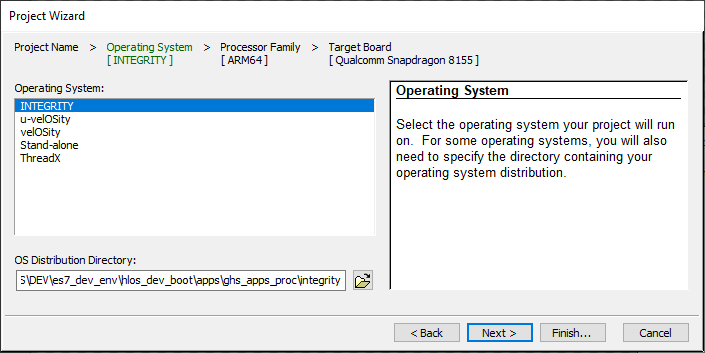
- 「Finish 」を選択します。
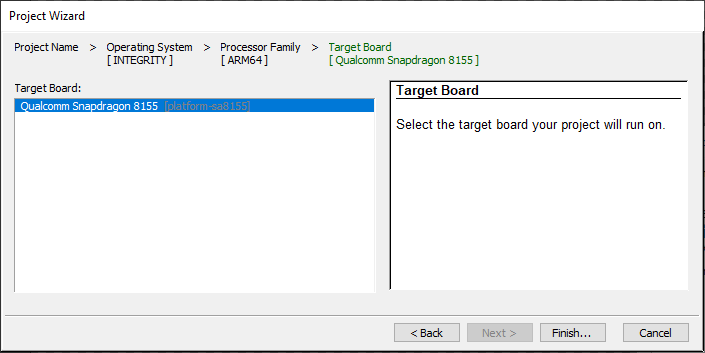
- 「Create New 」>「Dynamic Download 」>「Next 」を選択します。
- 「Settings For Dynamic Download 」>「Finish 」を選択します。
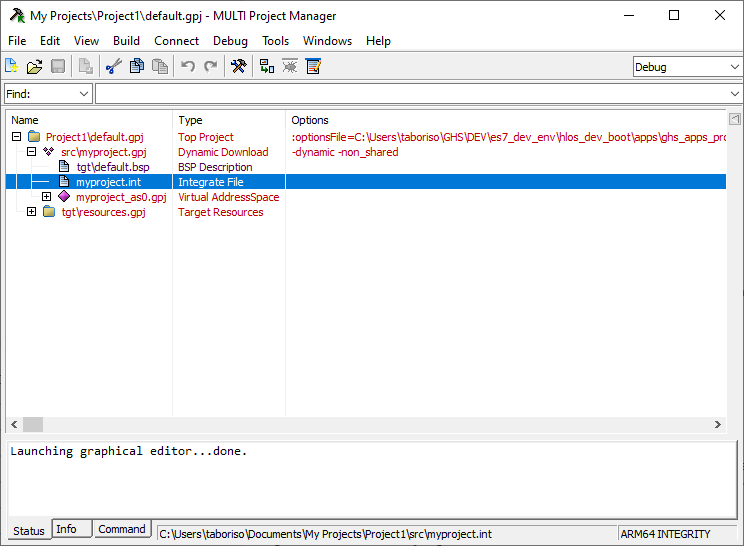
動的ダウンロードプロジェクトの構築
- プロジェクトツリー内の `myproject.int` ファイルを編集して保存します:
AddressSpace Name qtapp Filename C:\path\to\your\qt\app\binary MemoryPoolSize 0x2700000 Language C++ HeapSize 0x90000 Task Initial StackSize 0x90000 StartIt false EndTask Extendedmemorypoolsize 0x300000 EndAddressSpace - 「multi_commands」という名前の新しいファイルを作成し、そこに以下のコマンドを追加します:
switch -component "debugger.task.qtapp.Initial" route "debugger.task.qtapp.Initial" { __ntwcommand prepare_target } wait -load switch -component "debugger.task.qtapp.Initial" route "debugger.task.qtapp.Initial" { __ntwcommand resume } wait -time 240000 -stop switch -component "debugger.task.qtapp.Initial" unload myproject wait -time 8000 -stop savedebugpane cmd "autotestresult.txt" quitall - WindowsのCMDターミナルから、ビルドおよびロードコマンドを実行します:
multi.exe "C:\Users\user\Documents\My Projects\Project1\default.gpj" -build myproject &
multi.exe "C:\Users\user\Documents\My Projects\Project1\dbg\bin\myproject" -connect="rtserv2 192.168.1.1" -p C:\Users\user\multi_commands &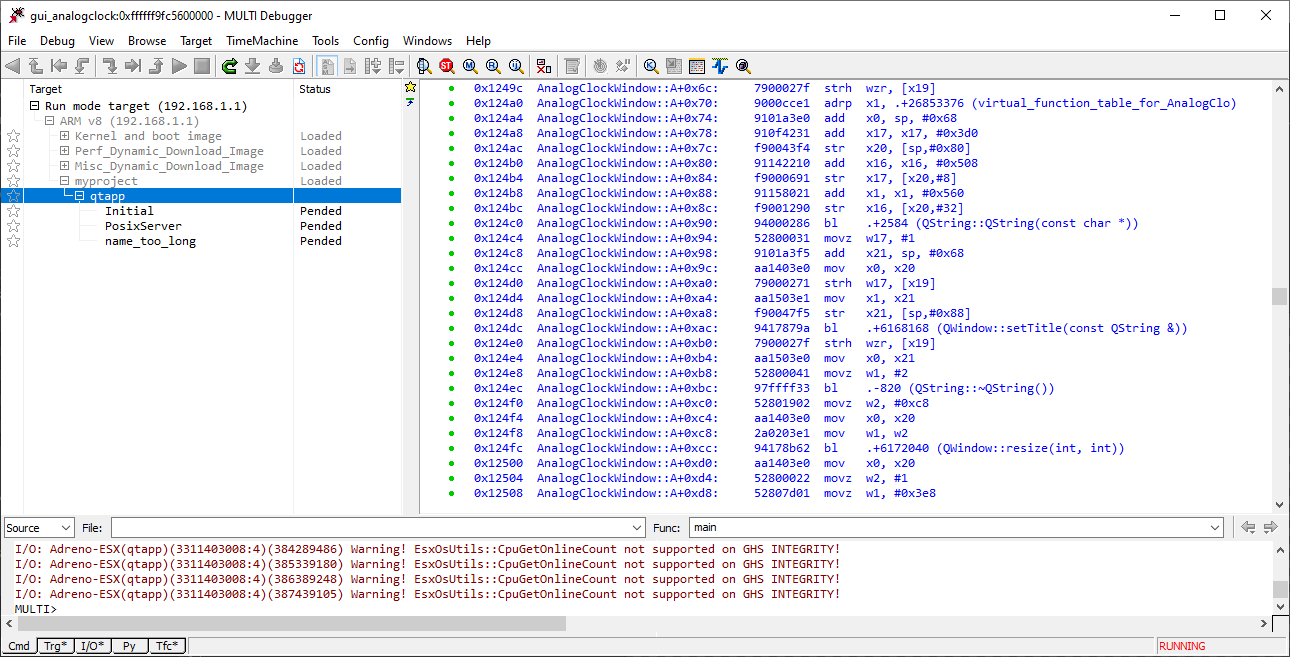
注: 「rtserv2 192.168.1.1」はボードのIPアドレスです。ボードのネットワーク設定については、「配線の設定」を参照してください。
注: ダイナミックダウンロードによるデプロイには数分かかります。
© 2026 The Qt Company Ltd. Documentation contributions included herein are the copyrights of their respective owners. The documentation provided herein is licensed under the terms of the GNU Free Documentation License version 1.3 as published by the Free Software Foundation. Qt and respective logos are trademarks of The Qt Company Ltd. in Finland and/or other countries worldwide. All other trademarks are property of their respective owners.
