
Uninstalling Squish AI Assistant Extension
The Squish IDE provides an easy to use option to uninstall the Squish AI Assistant Extension. Select Help > Uninstall AI Assistant Extension from the menu. An Uninstallation Dialog is being opened, once you select Finish the uninstallation from the IDE takes place and afterwards the IDE needs to be restarted.
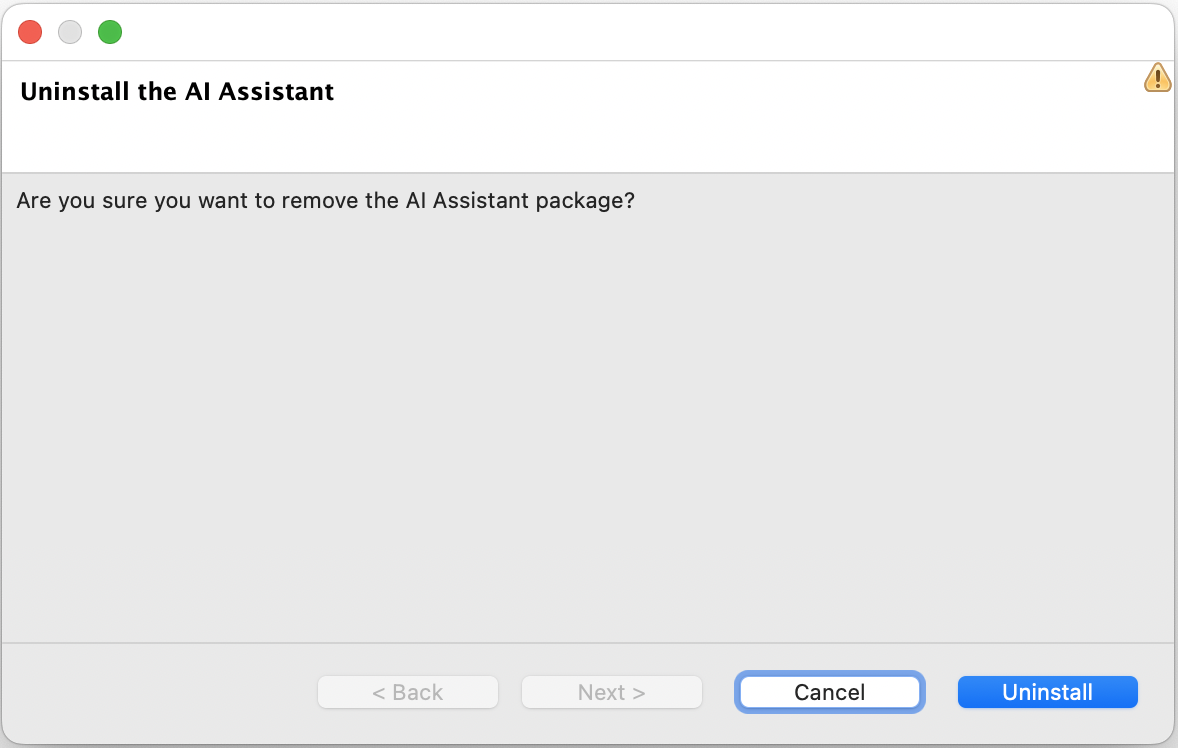
Uninstall wizard for Squish AI Assistant Extension
Removing Remaining Extension Files
Uninstalling the Squish AI Assistant Extension might leave some plugin and feature files on disk. To remove these files manually, first uninstall the extension, restart the IDE as instructed, and then close the Squish IDE.
Check the plugins and features subdirectories of the Squish IDE installation directory for the following AI Assistant files or directories:
features/io.qt.squish.ui.aiassistant.feature*plugins/io.qt.squish.coai.plugin*plugins/io.qt.squish.connector.plugin*(AI Assistant version 1.0 only)
On macOS, these directories are located inside the application bundle:
Contents/Eclipse/plugins
Contents/Eclipse/features
If the Squish installation directory was not writable when the AI Assistant Extension was installed, the extension files might instead be stored in a user-specific Eclipse installation directory:
~/.eclipse/org.eclipse.platform_<identifier>/plugins
~/.eclipse/org.eclipse.platform_<identifier>/features
There may be multiple directories starting with org.eclipse.platform_, each corresponding to a specific Eclipse-based IDE installation. The <identifier> part varies between installations. Check the plugins and features subdirectories in these directories.
If any of the listed AI Assistant files or directories remain after uninstallation, they can be removed manually.
Note: Remove only the listed AI Assistant files and directories. Other Squish components, including translation-related plugins, must not be removed.
Removing AI Assistant Settings
Uninstalling the Squish AI Assistant Extension does not remove its user settings, including the API keys configured for AI service providers.
To remove these settings, close the Squish IDE and delete the following file from the IDE workspace directory:
.metadata/.plugins/org.eclipse.core.runtime/.settings/io.qt.squish.coai.plugin.prefsThe default workspace locations are typically:
- Linux:
$HOME/.squish/workspace-ver-4 - Windows:
%APPDATA%\froglogic\squish\workspace-ver-4
If the IDE was started with the -data command-line option, the workspace is located in the directory specified by that option.
If multiple workspaces have been used, check each workspace for the AI Assistant preferences file.
Note: Delete only the AI Assistant preferences file. Do not delete the entire .metadata or .settings directory, as these contain data used by other IDE components.
© 2025 The Qt Company Ltd.
Documentation contributions included herein are the copyrights of
their respective owners.
The documentation provided herein is licensed under the terms of the GNU Free Documentation License version 1.3 as published by the Free Software Foundation.
Qt and respective logos are trademarks of The Qt Company Ltd. in Finland and/or other countries worldwide. All other trademarks are property
of their respective owners.
