
Qt Quick コントロールのカスタマイズ
Qt Quick コントロールは、項目の階層(ツリー)で構成されています。独自のルックアンドフィールを提供するために、各項目のデフォルトの QML 実装をカスタム実装に置き換えることができます。
コントロールのカスタマイズ
UIの特定の部分に「その場限りの」外観を作成し、それ以外の場所では統一されたスタイルを使用したい場合もあるでしょう。現在使用しているスタイルには満足しているものの、特別な意味を持つ特定のボタンがあるといった場合です。
このボタンを作成する最初の方法は、必要な場所に直接定義することです。たとえば、「Basic」スタイルのボタンの角が四角いのが気に入らない場合などです。角を丸くするには、background 項目を上書きし、Rectangleのradiusプロパティを設定します:
import QtQuick
import QtQuick.Controls.Basic

ApplicationWindow {
    width: 400
    height: 400
    visible: true

    Button {
        id: button
        text: "A Special Button"
        background: Rectangle {
            implicitWidth: 100
            implicitHeight: 40
            color: button.down ? "#d6d6d6" : "#f6f6f6"
            border.color: "#26282a"
            border.width: 1
            radius: 4
        }
    }
}
注: どのスタイルにおいても、コントロールを構成する各項目は相互に連携して動作するように設計されているため 、希望する外観を実現するには、他の項目もオーバーライドする必要がある場合があります。また、すべてのスタイルがカスタマイズできるわけではありません。詳細については、「カスタマイズリファレンス」の注記を参照してください。
ボタンを作成する2つ目の方法は、角丸ボタンを複数の場所で使用する予定がある場合に適しています。この方法では、コードをプロジェクト内の独立したQMLファイルに移動させます。
この方法では、「Basic」スタイルのButton.qml にある背景のコードをコピーします。このファイルは、Qtのインストール先の以下のパスにあります:
$QTDIR/qml/QtQuick/Controls/Basic/Button.qml
その後、単に次の行を追加します:
radius: 4モジュール自体のコントロールとの混同を避けるため、このファイルには「MyButton.qml 」という名前を付けます。アプリケーションでこのコントロールを使用するには、ファイル名で参照してください:
import QtQuick.Controls.Basic

ApplicationWindow {
    MyButton {
        text: qsTr("A Special Button")
    }
}
ボタンを作成する3つ目の方法は、ファイルシステム上のファイルの配置場所と、QMLでの使用方法の両面において、もう少し構造化されています。 まず、前述の手順と同様に既存のファイルをコピーしますが、今回はプロジェクト内の(例えば)controls という名前のサブフォルダに配置します。このコントロールを使用するには、まずそのフォルダを名前空間にインポートします:
import QtQuick.Controls.Basic
import "controls" as MyControls

ApplicationWindow {
    MyControls.Button {
        text: qsTr("A Special Button")
    }
}これで「MyControls 」という名前空間が作成されたため、Qt Quick のControlsモジュールにある実際のコントロールと同じ名前を、このコントロールに付けることができます。追加したいコントロールがある場合は、この手順を繰り返してください。
これら3つの方法の追加の利点は、テンプレートをゼロから実装する必要がないことです。
注: ここで述べた3つのアプローチは 、添付のToolTip をカスタマイズするには機能しません。これは、内部で作成された共有アイテムであるためです。ToolTip を個別にカスタマイズするには、Custom Tool Tips を参照してください。添付のToolTip をカスタマイズするには、それを独自のスタイルの一部として提供する必要があります。
カスタムスタイルの作成
独自のスタイルを作成するには、いくつかの方法があります。以下では、さまざまなアプローチについて説明します。
スタイルの定義
Qt Quick Controlsにおいて、スタイルとは基本的に、単一のディレクトリ内に収められたQMLファイルの集合です。スタイルを使用可能にするには、以下の4つの要件を満たす必要があります:
- コントロールの名前(例:
Button.qml)と一致するQMLファイルが少なくとも1つ存在する必要があります。 - 各QMLファイルには、QtQuick.Templatesからのインポートに含まれる関連する型がルートアイテムとして含まれている必要があります。たとえば、Button.qmlには、ルートアイテムとしてButtonテンプレートが含まれている必要があります。
もし、前のセクションで行ったように、代わりにQtQuick.Controlsインポートからの対応する型を使用した場合、それは機能しません。定義しようとしているコントロールが、自分自身から派生しようとしてしまうためです。
- QMLファイルと一緒にqmldirファイルが存在する必要があります。以下は、ボタンを提供するスタイル用のシンプルな
qmldirファイルの例です:module MyStyle Button 2.15 Button.qmlコンパイル時のスタイル選択を使用している場合は、qmldirでフォールバックスタイルもインポートする必要があります:
# ... import QtQuick.Controls.Basic autoこれは、例えばQQuickStyle::setFallbackStyle() を使用する代わりに、実行時のスタイル選択でも行うことができます。
このようなスタイルのディレクトリ構造は、次のようになります:
MyStyle ├─── Button.qml └─── qmldir - ファイルは、QMLインポートパス経由で参照可能なディレクトリ内に配置する必要があります。
たとえば、前述の「MyStyle」ディレクトリへのパスが `
/home/user/MyApp/MyStyle` である場合、QMLのインポートパスに `/home/user/MyApp` を追加する必要があります。MyAppで MyStyle を使用するには、名前で参照してください:
./MyApp -style MyStyle
スタイル名は、スタイルディレクトリの大文字小文字を区別して一致させる必要があります。「mystyle」や「MYSTYLE」を指定することはサポートされていません。
デフォルトでは、スタイリングシステムは、実装されていないコントロールのフォールバックとして「Basic」スタイルを使用します。その他の組み込みスタイルをカスタマイズまたは拡張するには、QQuickStyle を使用して、別のフォールバックスタイルを指定することができます。
つまり、カスタムスタイル用に好きなだけコントロールを実装し、それらをほぼどこにでも配置することができます。また、ユーザーがアプリケーション用に独自のスタイルを作成することも可能になります。
Qt Quick Designer でのカスタムスタイルのプレビュー
上記の手法を用いれば、Qt Quick Designer でカスタムスタイルをプレビューすることが可能です。これを行うには、プロジェクトにqtquickcontrols2.confファイルが存在し、以下のエントリが含まれていることを確認してください:
[Controls]
Style=MyStyle詳細については、「Flat Style」サンプルを参照してください。
スタイル固有の C++ 拡張機能
場合によっては、C++ を使用してカスタムスタイルを拡張する必要があるかもしれません。
- その型を使用するスタイルが、アプリケーションで使用される唯一のスタイルである場合は、QML_ELEMENT マクロを追加し、そのファイルをQMLモジュールの一部として登録することで、QMLエンジンにその型を登録してください:
qt_add_qml_module(ACoolItem
    URI MyItems
    VERSION 1.0
    SOURCES
        acoolcppitem.cpp acoolcppitem.h
)
CONFIG += qmltypes QML_IMPORT_NAME = MyItems QML_IMPORT_MAJOR_VERSION = 1クラスが宣言されているヘッダーファイルが、プロジェクトのインクルードパスからアクセスできない場合は、生成された登録コードをコンパイルできるように、インクルードパスを修正する必要があるかもしれません。
INCLUDEPATH += MyItems詳細については、「C++ からの QML タイプの定義」および「QML アプリケーションの構築」を参照してください。
- その型を使用するスタイルが、アプリケーションで使用される多数のスタイルのうちの 1 つである場合は、各スタイルを個別のモジュールに配置することを検討してください。そうすることで、モジュールは必要に応じて読み込まれるようになります。
カスタムスタイルに関する考慮事項
独自のスタイルを実装したり、コントロールをカスタマイズしたりする場合、アプリケーションのパフォーマンスを最大限に高めるために留意すべき点がいくつかあります。
スタイルのアイテムデリゲートの実装に ID を割り当てることは避けてください
「スタイルの定義」で説明したように、コントロールの独自のスタイルを実装する際は、そのコントロールに関連するテンプレートから始めます。たとえば、スタイルのButton.qml は次のような構造になります。
アプリケーションでButtonを使用する場合、background およびcontentItem というアイテムが作成され、ルートアイテムであるButton の子として配置されます:
// Creates the Button root item, the Rectangle background,
// and the Text contentItem.
Button {
    text: qsTr("Confirm")
}
ここで、Button に対して 1 回限りのカスタマイズを行う必要があると仮定します(「コントロールのカスタマイズ」で説明されているように):
import QtQuick
import QtQuick.Controls.Basic

ApplicationWindow {
    width: 400
    height: 400
    visible: true

    Button {
        id: button
        text: "A Special Button"
        background: Rectangle {
            implicitWidth: 100
            implicitHeight: 40
            color: button.down ? "#d6d6d6" : "#f6f6f6"
            border.color: "#26282a"
            border.width: 1
            radius: 4
        }
    }
}QMLでは通常、この操作により、デフォルトのbackground の実装と、その場限りのカスタムbackground 項目の両方が作成されます。「Qt Quick Controls」では、両方の項目を作成することを避け、代わりにカスタムbackground のみを作成する手法を採用しており、これによりコントロールの作成パフォーマンスが大幅に向上します。
この手法は、そのアイテムのスタイル実装にIDが存在しないことを前提としています。ID が割り当てられている場合、この手法は機能せず、両方のアイテムが作成されてしまいます。たとえば、ファイル内の他のオブジェクトがそれらのアイテムを参照できるように、background やcontentItem に ID を割り当てたくなるかもしれません。
T.Button {
    // ...

    background: Rectangle {
        id: backgroundRect
        // ...
    }

    contentItem: Text {
        // Use backgroundRect in some way...
    }

    // ...
}
このコードでは、カスタマイズされた背景を持つ Button インスタンスが作成されるたびに、両方の背景が作成され、結果として作成パフォーマンスが低下してしまいます。
Qt 5.15 以前では、古くなって使用されなくなった背景は削除され、それに関連するリソースが解放されていました。しかし、コントロールはアイテムを所有していないため、それらを削除すべきではありません。 Qt 5.15 以降、古いアイテムは削除されなくなったため、backgroundRect アイテムは必要以上に長く存続することになります(通常はアプリケーションが終了するまで)。 古いアイテムは非表示になり、視覚的にはコントロールから切り離され、アクセシビリティツリーからも削除されますが、この文脈で ID を割り当てる際には、これらの未使用アイテムの作成時間とメモリ使用量を念頭に置くことが重要です。
カスタム項目の命令型代入は避ける
上記のセクションで言及した手法は、アイテムが初めて宣言的に割り当てられる場合にのみ機能するため、命令型の割り当てを行うと孤立したアイテムが生じます。可能な限り、カスタムアイテムの割り当てには常に宣言的なバインディングを使用してください。
QML実装でQtQuick.Controlsをインポートしない
スタイルによるコントロールの実装用のQMLを記述する際は、QtQuick.Controls をインポートしないことが重要です。そうしないと、QMLコンパイラによるQMLのコンパイルが行われなくなります。
他の型で使用される型を実装する
アプリケーションでScrollViewを使用しており、そのスクロールバーをカスタマイズしたいと仮定します。単にカスタムのScrollBar.qmlを実装し、ScrollView がカスタマイズされたScrollBar を自動的に読み込むようにしたくなるかもしれません。しかし、これは機能しません。ScrollBar.qmlと ScrollView.qmlの両方を実装する必要があります。
関連プロパティ
スタイルには、すべてのコントロールに適用される特定のプロパティや属性が含まれることがよくあります。アタッチドプロパティは、そのアイテムに属する既存の C++ を変更することなく、QML 内のアイテムを拡張するための優れた方法です。たとえば、MaterialスタイルとUniversalスタイルの両方には、アイテムとその子要素をライトテーマでレンダリングするかダークテーマでレンダリングするかを制御する「theme」というアタッチドプロパティがあります。
例として、高さを制御するアタッチドプロパティを追加してみましょう。このスタイルでは、高さをドロップシャドウで表現します。高さが大きいほど、シャドウも大きくなります。
まず、 Qt Creator または Qt Extension for Visual Studio Code で、新しい「Qt Quick Controls」アプリケーションを作成します。その後、 Qt Creatorまたは Qt Extension for Visual Studio Code で、エレベーションを格納する C++ 型を追加します。この型は、このスタイルがサポートするすべてのコントロールで使用されること、また後で他のアタッチドプロパティを追加する可能性があることから、MyStyle と名付けます。MyStyle.h の内容は以下の通りです:
#ifndef MYSTYLE_H
#define MYSTYLE_H

#include <QObject>
#include <QtQml>

class MyStyle : public QObject
{
    Q_OBJECT
    Q_PROPERTY(int elevation READ elevation WRITE setElevation NOTIFY elevationChanged)

public:
    explicit MyStyle(QObject *parent = nullptr);

    static MyStyle *qmlAttachedProperties(QObject *object);

    int elevation() const;
    void setElevation(int elevation);

signals:
    void elevationChanged();

private:
    int m_elevation;
};

QML_DECLARE_TYPEINFO(MyStyle, QML_HAS_ATTACHED_PROPERTIES)

#endif // MYSTYLE_HMyStyle.cpp:
#include "mystyle.h"

MyStyle::MyStyle(QObject *parent) :
    QObject(parent),
    m_elevation(0)
{
}

MyStyle *MyStyle::qmlAttachedProperties(QObject *object)
{
    return new MyStyle(object);
}

int MyStyle::elevation() const
{
    return m_elevation;
}

void MyStyle::setElevation(int elevation)
{
    if (elevation == m_elevation)
        return;

    m_elevation = elevation;
    emit elevationChanged();
}
MyStyle 型は、インスタンス化されるのではなく、そのアタッチドプロパティとして使用されるという点で特殊です。そのため、main.cpp 内で次のように登録します:
#include <QGuiApplication>
#include <QQmlApplicationEngine>

#include "mystyle.h"

int main(int argc, char *argv[])
{
    QGuiApplication app(argc, argv);

    qmlRegisterUncreatableType<MyStyle>("MyStyle", 1, 0, "MyStyle", "MyStyle is an attached property");

    QQmlApplicationEngine engine;
    // Make the directory containing our style known to the QML engine.
    engine.addImportPath(":/");
    engine.load(QUrl(QLatin1String("qrc:/main.qml")));

    return app.exec();
}次に、$QTDIR/qml/QtQuick/Controls/Basic/ 内の「Basic」スタイルからButton.qml をコピーし、プロジェクトディレクトリ内の新しい「myproject 」フォルダに配置します。コピーしたButton.qml を、QMLファイルを含むリソースファイルであるqml.qrc に追加します。
次に、Buttonのbackground デリゲートにドロップシャドウを追加します:
// ...
import QtQuick.Effects
import MyStyle
// ...

background: Rectangle {
    // ...

    layer.enabled: control.enabled && control.MyStyle.elevation > 0
    layer.effect: MultiEffect {
        shadowEnabled: true
        shadowHorizontalOffset: 3
        shadowVerticalOffset: 3
        shadowColor: control.visualFocus ? "#330066ff" : "#aaaaaa"
        shadowBlur: control.pressed ? 0.8 : 0.4
    }
}
以下の点に注意してください:
- エレベーションがある場合は、ドロップシャドウを使用しない
0 - ボタンにフォーカスがあるかどうかによって、シャドウの色を変更します
- シャドウのサイズはエレベーションに応じて変更する
この添付プロパティを試すために、main.qml 内に2つのButtonを含むRow を作成します:
import QtQuick
import QtQuick.Controls

import MyStyle 1.0

ApplicationWindow {
    id: window
    width: 400
    height: 400
    visible: true

    Row {
        spacing: 20
        anchors.centerIn: parent

        Button {
            text: "Button 1"
        }
        Button {
            text: "Button 2"
            MyStyle.elevation: 10
        }
    }
}一方のボタンにはエレベーションがなく、もう一方のボタンには10 のエレベーションが設定されています。
準備が整ったら、サンプルを実行します。アプリケーションに新しいスタイルを使用させるには、-style MyStyle をアプリケーション引数として渡しますが、使用するスタイルを指定する方法は他にもたくさんあります。
最終的な結果は次のようになります:
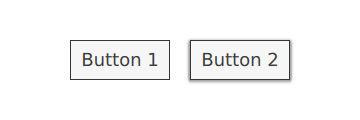
なお、import MyStyle 1.0 という記述が必要なのは、MyStyle に属する添付プロパティを使用しているためです。このインポートを削除したとしても、両方のボタンはカスタムスタイルを使用します。
カスタマイズリファレンス
以下のコードスニペットは、「コントロールのカスタマイズ」セクションと同じアプローチを用いて、Basicスタイルのコントロールをカスタマイズした例を示しています。このコードは、独自のルックアンドフィールを実装するための出発点として利用できます。
注: macOSおよびWindowsスタイルは カスタマイズには適していません。代わりに、カスタマイズされたコントロールは、Basic スタイル、Fusion スタイル、Imagine スタイル、Material スタイル、Universal スタイルなど、すべてのプラットフォームで利用可能な単一のスタイルを常にベースにすることをお勧めします。 そうすることで、アプリケーションがどのスタイルで実行されても、常に同じ外観になることが保証されます。別のスタイルの使用方法については、「Qt Quick コントロールでのスタイルの使用」を参照してください。あるいは、独自のスタイルを作成することもできます。
注: コントロールのサイズを変更しても 、実際のコンテンツサイズは通常、変わりません。たとえば、一部のスタイルでは、ボタンがコントロールの境界いっぱいに表示される一方で、CheckBox のチェックインジケーターやテキストは水平方向および/または垂直方向に中央揃えになる場合があります。デフォルトのサイズ変更動作が望ましくない場合は、該当するデリゲートをオーバーライドしてください。
ApplicationWindowのカスタマイズ
ApplicationWindow は、1つのビジュアルアイテム(background )で構成されています。
import QtQuick
import QtQuick.Controls.Basic

ApplicationWindow {
    visible: true

    background: Rectangle {
        gradient: Gradient {
            GradientStop { position: 0; color: "#ffffff" }
            GradientStop { position: 1; color: "#c1bbf9" }
        }
    }
}
BusyIndicatorのカスタマイズ
BusyIndicator は、2つのビジュアルアイテム(background およびcontentItem )で構成されています。

import QtQuick
import QtQuick.Controls.Basic

BusyIndicator {
    id: control

    contentItem: Item {
        implicitWidth: 64
        implicitHeight: 64

        Item {
            id: item
            x: parent.width / 2 - 32
            y: parent.height / 2 - 32
            width: 64
            height: 64
            opacity: control.running ? 1 : 0

            Behavior on opacity {
                OpacityAnimator {
                    duration: 250
                }
            }

            RotationAnimator {
                target: item
                running: control.visible && control.running
                from: 0
                to: 360
                loops: Animation.Infinite
                duration: 1250
            }

            Repeater {
                id: repeater
                model: 6

                Rectangle {
                    id: delegate
                    x: item.width / 2 - width / 2
                    y: item.height / 2 - height / 2
                    implicitWidth: 10
                    implicitHeight: 10
                    radius: 5
                    color: "#21be2b"

                    required property int index

                    transform: [
                        Translate {
                            y: -Math.min(item.width, item.height) * 0.5 + 5
                        },
                        Rotation {
                            angle: delegate.index / repeater.count * 360
                            origin.x: 5
                            origin.y: 5
                        }
                    ]
                }
            }
        }
    }
}
Buttonのカスタマイズ
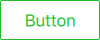
Buttonは、background とcontentItem の2つのビジュアルアイテムで構成されています。
import QtQuick
import QtQuick.Controls.Basic

Button {
    id: control
    text: qsTr("Button")

    contentItem: Text {
        text: control.text
        font: control.font
        opacity: enabled ? 1.0 : 0.3
        color: control.down ? "#17a81a" : "#21be2b"
        horizontalAlignment: Text.AlignHCenter
        verticalAlignment: Text.AlignVCenter
        elide: Text.ElideRight
    }

    background: Rectangle {
        implicitWidth: 100
        implicitHeight: 40
        opacity: enabled ? 1 : 0.3
        border.color: control.down ? "#17a81a" : "#21be2b"
        border.width: 1
        radius: 2
    }
}
チェックボックスのカスタマイズ
CheckBox 3つのビジュアル項目で構成されています:background 、contentItem 、およびindicator 。

import QtQuick
import QtQuick.Controls.Basic

CheckBox {
    id: control
    text: qsTr("CheckBox")
    checked: true

    indicator: Rectangle {
        implicitWidth: 26
        implicitHeight: 26
        x: control.leftPadding
        y: parent.height / 2 - height / 2
        radius: 3
        border.color: control.down ? "#17a81a" : "#21be2b"

        Rectangle {
            width: 14
            height: 14
            x: 6
            y: 6
            radius: 2
            color: control.down ? "#17a81a" : "#21be2b"
            visible: control.checked
        }
    }

    contentItem: Text {
        text: control.text
        font: control.font
        opacity: enabled ? 1.0 : 0.3
        color: control.down ? "#17a81a" : "#21be2b"
        verticalAlignment: Text.AlignVCenter
        leftPadding: control.indicator.width + control.spacing
    }
}
CheckDelegateのカスタマイズ
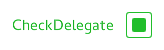
CheckDelegate には、background 、contentItem 、indicator の3つのビジュアルアイテムが含まれています。
import QtQuick
import QtQuick.Controls.Basic

CheckDelegate {
    id: control
    text: qsTr("CheckDelegate")
    checked: true

    contentItem: Text {
        rightPadding: control.indicator.width + control.spacing
        text: control.text
        font: control.font
        opacity: enabled ? 1.0 : 0.3
        color: control.down ? "#17a81a" : "#21be2b"
        elide: Text.ElideRight
        verticalAlignment: Text.AlignVCenter
    }

    indicator: Rectangle {
        implicitWidth: 26
        implicitHeight: 26
        x: control.width - width - control.rightPadding
        y: control.topPadding + control.availableHeight / 2 - height / 2
        radius: 3
        color: "transparent"
        border.color: control.down ? "#17a81a" : "#21be2b"

        Rectangle {
            width: 14
            height: 14
            x: 6
            y: 6
            radius: 2
            color: control.down ? "#17a81a" : "#21be2b"
            visible: control.checked
        }
    }

    background: Rectangle {
        implicitWidth: 100
        implicitHeight: 40
        visible: control.down || control.highlighted
        color: control.down ? "#bdbebf" : "#eeeeee"
    }
}
ComboBoxのカスタマイズ
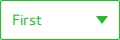
ComboBox background 、 、 、 、および から構成されています。contentItem popup indicator delegate
pragma ComponentBehavior: Bound

import QtQuick
import QtQuick.Controls.Basic

ComboBox {
    id: control
    model: ["First", "Second", "Third"]

    delegate: ItemDelegate {
        id: delegate

        required property var model
        required property int index

        width: control.width
        contentItem: Text {
            text: delegate.model[control.textRole]
            color: "#21be2b"
            font: control.font
            elide: Text.ElideRight
            verticalAlignment: Text.AlignVCenter
        }
        highlighted: control.highlightedIndex === index
    }

    indicator: Canvas {
        id: canvas
        x: control.width - width - control.rightPadding
        y: control.topPadding + (control.availableHeight - height) / 2
        width: 12
        height: 8
        contextType: "2d"

        Connections {
            target: control
            function onPressedChanged() { canvas.requestPaint(); }
        }

        onPaint: {
            context.reset();
            context.moveTo(0, 0);
            context.lineTo(width, 0);
            context.lineTo(width / 2, height);
            context.closePath();
            context.fillStyle = control.pressed ? "#17a81a" : "#21be2b";
            context.fill();
        }
    }

    contentItem: Text {
        leftPadding: 0
        rightPadding: control.indicator.width + control.spacing

        text: control.displayText
        font: control.font
        color: control.pressed ? "#17a81a" : "#21be2b"
        verticalAlignment: Text.AlignVCenter
        elide: Text.ElideRight
    }

    background: Rectangle {
        implicitWidth: 120
        implicitHeight: 40
        border.color: control.pressed ? "#17a81a" : "#21be2b"
        border.width: control.visualFocus ? 2 : 1
        radius: 2
    }

    popup: Popup {
        y: control.height - 1
        width: control.width
        height: Math.min(contentItem.implicitHeight, control.Window.height - topMargin - bottomMargin)
        padding: 1

        contentItem: ListView {
            clip: true
            implicitHeight: contentHeight
            model: control.popup.visible ? control.delegateModel : null
            currentIndex: control.highlightedIndex

            ScrollIndicator.vertical: ScrollIndicator { }
        }

        background: Rectangle {
            border.color: "#21be2b"
            radius: 2
        }
    }
}
ComboBox Model Roles で説明されているように、ComboBox は複数の種類のモデルをサポートしています。
すべてのモデルは modelData という名前の匿名プロパティを備えているため、次の式はどのような場合でも正しいテキストを取得します:
text: model[control.textRole]textRole特定のtextRole と、選択された役割を提供する構造化データを持つモデルを指定した場合、この式は通常のプロパティ検索となります。文字列のリストなど単一のデータを持つモデルと、空の を指定した場合、この式はmodelData を取得します。
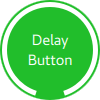
DelayButtonのカスタマイズ
DelayButton は、background とcontentItem の2つのビジュアルアイテムで構成されています。
import QtQuick
import QtQuick.Controls.Basic

DelayButton {
    id: control
    checked: true
    text: qsTr("Delay\nButton")

    contentItem: Text {
        text: control.text
        font: control.font
        opacity: enabled ? 1.0 : 0.3
        color: "white"
        horizontalAlignment: Text.AlignHCenter
        verticalAlignment: Text.AlignVCenter
        elide: Text.ElideRight
    }

    background: Rectangle {
        implicitWidth: 100
        implicitHeight: 100
        opacity: enabled ? 1 : 0.3
        color: control.down ? "#17a81a" : "#21be2b"
        radius: size / 2

        readonly property real size: Math.min(control.width, control.height)
        width: size
        height: size
        anchors.centerIn: parent

        Canvas {
            id: canvas
            anchors.fill: parent

            Connections {
                target: control
                function onProgressChanged() { canvas.requestPaint(); }
            }

            onPaint: {
                var ctx = getContext("2d")
                ctx.clearRect(0, 0, width, height)
                ctx.strokeStyle = "white"
                ctx.lineWidth = parent.size / 20
                ctx.beginPath()
                var startAngle = Math.PI / 5 * 3
                var endAngle = startAngle + control.progress * Math.PI / 5 * 9
                ctx.arc(width / 2, height / 2, width / 2 - ctx.lineWidth / 2 - 2, startAngle, endAngle)
                ctx.stroke()
            }
        }
    }
}
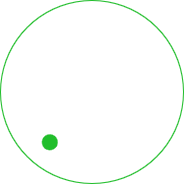
「Dial」のカスタマイズ
Dial は、background とhandle の 2 つのビジュアル項目で構成されています。
import QtQuick
import QtQuick.Controls.Basic

Dial {
    id: control
    background: Rectangle {
        x: control.width / 2 - width / 2
        y: control.height / 2 - height / 2
        implicitWidth: 140
        implicitHeight: 140
        width: Math.max(64, Math.min(control.width, control.height))
        height: width
        color: "transparent"
        radius: width / 2
        border.color: control.pressed ? "#17a81a" : "#21be2b"
        opacity: control.enabled ? 1 : 0.3
    }

    handle: Rectangle {
        id: handleItem
        x: control.background.x + control.background.width / 2 - width / 2
        y: control.background.y + control.background.height / 2 - height / 2
        width: 16
        height: 16
        color: control.pressed ? "#17a81a" : "#21be2b"
        radius: 8
        antialiasing: true
        opacity: control.enabled ? 1 : 0.3
        transform: [
            Translate {
                y: -Math.min(control.background.width, control.background.height) * 0.4 + handleItem.height / 2
            },
            Rotation {
                angle: control.angle
                origin.x: handleItem.width / 2
                origin.y: handleItem.height / 2
            }
        ]
    }
}
DoubleSpinBoxのカスタマイズ
DoubleSpinBox Button と同様の方法でカスタマイズできます。
Drawerのカスタマイズ
Drawer には、background というビジュアルアイテムを含めることができます。
background: Rectangle {
    Rectangle {
        x: parent.width - 1
        width: 1
        height: parent.height
        color: "#21be2b"
    }
}
Frameのカスタマイズ
Frameは、background という1つのビジュアル・アイテムで構成されています。

import QtQuick
import QtQuick.Controls.Basic

Frame {
    background: Rectangle {
        color: "transparent"
        border.color: "#21be2b"
        radius: 2
    }

    Label {
        text: qsTr("Content goes here!")
    }
}
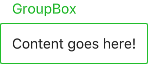
GroupBoxのカスタマイズ
GroupBox 2つのビジュアル項目(background およびlabel )で構成されています。
import QtQuick
import QtQuick.Controls.Basic

GroupBox {
    id: control
    title: qsTr("GroupBox")

    background: Rectangle {
        y: control.topPadding - control.bottomPadding
        width: parent.width
        height: parent.height - control.topPadding + control.bottomPadding
        color: "transparent"
        border.color: "#21be2b"
        radius: 2
    }

    label: Label {
        x: control.leftPadding
        width: control.availableWidth
        text: control.title
        color: "#21be2b"
        elide: Text.ElideRight
    }

    Label {
        text: qsTr("Content goes here!")
    }
}
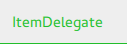
ItemDelegateのカスタマイズ
ItemDelegate 2つのビジュアル項目(background およびcontentItem )で構成されています。
import QtQuick
import QtQuick.Controls.Basic

ItemDelegate {
    id: control
    text: qsTr("ItemDelegate")

    contentItem: Text {
        rightPadding: control.spacing
        text: control.text
        font: control.font
        color: control.enabled ? (control.down ? "#17a81a" : "#21be2b") : "#bdbebf"
        elide: Text.ElideRight
        verticalAlignment: Text.AlignVCenter
    }

    background: Rectangle {
        implicitWidth: 100
        implicitHeight: 40
        opacity: enabled ? 1 : 0.3
        color: control.down ? "#dddedf" : "#eeeeee"

        Rectangle {
            width: parent.width
            height: 1
            color: control.down ? "#17a81a" : "#21be2b"
            anchors.bottom: parent.bottom
        }
    }
}
ラベルのカスタマイズ
ラベルには、background の視覚的要素を含めることができます。

import QtQuick
import QtQuick.Controls.Basic

Label {
    text: qsTr("Label")
    color: "#21be2b"
}
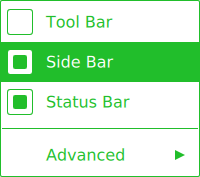
メニューのカスタマイズ
- Menu は、ビジュアルアイテム「background 」で構成されています。
- MenuItem は、background 、contentItem 、indicator 、およびarrow の4つのビジュアル項目で構成されています。
- MenuSeparator background および という 2 つのビジュアル項目で構成されています。contentItem
import QtQuick
import QtQuick.Controls.Basic

Menu {
    id: menu

    Action { text: qsTr("Tool Bar"); checkable: true }
    Action { text: qsTr("Side Bar"); checkable: true; checked: true }
    Action { text: qsTr("Status Bar"); checkable: true; checked: true }

    MenuSeparator {
        contentItem: Rectangle {
            implicitWidth: 200
            implicitHeight: 1
            color: "#21be2b"
        }
    }

    Menu {
        title: qsTr("Advanced")
        // ...
    }

    topPadding: 2
    bottomPadding: 2

    delegate: MenuItem {
        id: menuItem
        implicitWidth: 200
        implicitHeight: 40

        arrow: Canvas {
            x: parent.width - width
            implicitWidth: 40
            implicitHeight: 40
            visible: menuItem.subMenu
            onPaint: {
                var ctx = getContext("2d")
                ctx.fillStyle = menuItem.highlighted ? "#ffffff" : "#21be2b"
                ctx.moveTo(15, 15)
                ctx.lineTo(width - 15, height / 2)
                ctx.lineTo(15, height - 15)
                ctx.closePath()
                ctx.fill()
            }
        }

        indicator: Item {
            implicitWidth: 40
            implicitHeight: 40
            Rectangle {
                width: 26
                height: 26
                anchors.centerIn: parent
                visible: menuItem.checkable
                border.color: "#21be2b"
                radius: 3
                Rectangle {
                    width: 14
                    height: 14
                    anchors.centerIn: parent
                    visible: menuItem.checked
                    color: "#21be2b"
                    radius: 2
                }
            }
        }

        contentItem: Text {
            leftPadding: menuItem.indicator.width
            rightPadding: menuItem.arrow.width
            text: menuItem.text
            font: menuItem.font
            opacity: enabled ? 1.0 : 0.3
            color: menuItem.highlighted ? "#ffffff" : "#21be2b"
            horizontalAlignment: Text.AlignLeft
            verticalAlignment: Text.AlignVCenter
            elide: Text.ElideRight
        }

        background: Rectangle {
            implicitWidth: 200
            implicitHeight: 40
            opacity: enabled ? 1 : 0.3
            color: menuItem.highlighted ? "#21be2b" : "transparent"
        }
    }

    background: Rectangle {
        implicitWidth: 200
        implicitHeight: 40
        color: "#ffffff"
        border.color: "#21be2b"
        radius: 2
    }
}
MenuBarのカスタマイズ
MenuBar には、ビジュアルのbackground 項目を含めることができ、MenuBarItem は、background とcontentItem の2つのビジュアル項目で構成されています。

import QtQuick
import QtQuick.Controls.Basic

MenuBar {
    id: menuBar

    Menu { title: qsTr("File") }
    Menu { title: qsTr("Edit") }
    Menu { title: qsTr("View") }
    Menu { title: qsTr("Help") }

    delegate: MenuBarItem {
        id: menuBarItem

        contentItem: Text {
            text: menuBarItem.text
            font: menuBarItem.font
            opacity: enabled ? 1.0 : 0.3
            color: menuBarItem.highlighted ? "#ffffff" : "#21be2b"
            horizontalAlignment: Text.AlignLeft
            verticalAlignment: Text.AlignVCenter
            elide: Text.ElideRight
        }

        background: Rectangle {
            implicitWidth: 40
            implicitHeight: 40
            opacity: enabled ? 1 : 0.3
            color: menuBarItem.highlighted ? "#21be2b" : "transparent"
        }
    }

    background: Rectangle {
        implicitWidth: 40
        implicitHeight: 40
        color: "#ffffff"

        Rectangle {
            color: "#21be2b"
            width: parent.width
            height: 1
            anchors.bottom: parent.bottom
        }
    }
}
PageIndicatorのカスタマイズ
PageIndicator は、background 、contentItem 、およびdelegate で構成されます。

import QtQuick
import QtQuick.Controls.Basic

PageIndicator {
    id: control
    count: 5
    currentIndex: 2

    delegate: Rectangle {
        implicitWidth: 8
        implicitHeight: 8

        radius: width / 2
        color: "#21be2b"

        opacity: index === control.currentIndex ? 0.95 : pressed ? 0.7 : 0.45

        required property int index

        Behavior on opacity {
            OpacityAnimator {
                duration: 100
            }
        }
    }
}
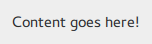
Paneのカスタマイズ
Paneは、background で構成されています。
import QtQuick
import QtQuick.Controls.Basic

Pane {
    background: Rectangle {
        color: "#eeeeee"
    }

    Label {
        text: qsTr("Content goes here!")
    }
}
ポップアップのカスタマイズ
ポップアップは、background とcontentItem で構成されています。
import QtQuick
import QtQuick.Controls.Basic

Popup {
    id: popup
    background: Rectangle {
        implicitWidth: 200
        implicitHeight: 200
        border.color: "#444"
    }
    contentItem: Column {}
}
プログレスバーのカスタマイズ
ProgressBar background と の2つのビジュアルアイテムで構成されています。contentItem

import QtQuick
import QtQuick.Controls.Basic

ProgressBar {
    id: control
    value: 0.5
    padding: 2

    background: Rectangle {
        implicitWidth: 200
        implicitHeight: 6
        color: "#e6e6e6"
        radius: 3
    }

    contentItem: Item {
        implicitWidth: 200
        implicitHeight: 4

        // Progress indicator for determinate state.
        Rectangle {
            width: control.visualPosition * parent.width
            height: parent.height
            radius: 2
            color: "#17a81a"
            visible: !control.indeterminate
        }

        // Scrolling animation for indeterminate state.
        Item {
            anchors.fill: parent
            visible: control.indeterminate
            clip: true

            Row {
                spacing: 20

                Repeater {
                    model: control.width / 40 + 1

                    Rectangle {
                        color: "#17a81a"
                        width: 20
                        height: control.height
                    }
                }
                XAnimator on x {
                    from: 0
                    to: -40
                    loops: Animation.Infinite
                    running: control.indeterminate
                }
            }
        }
    }
}上記では、indeterminate の進行状況バーの状態を表すために、contentItemにもアニメーションが適用されています。
RadioButtonのカスタマイズ
RadioButton は、background 、contentItem 、indicator の3つのビジュアル項目で構成されています。

import QtQuick
import QtQuick.Controls.Basic

RadioButton {
    id: control
    text: qsTr("RadioButton")
    checked: true

    indicator: Rectangle {
        implicitWidth: 26
        implicitHeight: 26
        x: control.leftPadding
        y: parent.height / 2 - height / 2
        radius: 13
        border.color: control.down ? "#17a81a" : "#21be2b"

        Rectangle {
            width: 14
            height: 14
            x: 6
            y: 6
            radius: 7
            color: control.down ? "#17a81a" : "#21be2b"
            visible: control.checked
        }
    }

    contentItem: Text {
        text: control.text
        font: control.font
        opacity: enabled ? 1.0 : 0.3
        color: control.down ? "#17a81a" : "#21be2b"
        verticalAlignment: Text.AlignVCenter
        leftPadding: control.indicator.width + control.spacing
    }
}
RadioDelegateのカスタマイズ
RadioDelegate は、background 、contentItem 、indicator の3つのビジュアル・アイテムで構成されています。

import QtQuick
import QtQuick.Controls.Basic

RadioDelegate {
    id: control
    text: qsTr("RadioDelegate")
    checked: true

    contentItem: Text {
        rightPadding: control.indicator.width + control.spacing
        text: control.text
        font: control.font
        opacity: enabled ? 1.0 : 0.3
        color: control.down ? "#17a81a" : "#21be2b"
        elide: Text.ElideRight
        verticalAlignment: Text.AlignVCenter
    }

    indicator: Rectangle {
        implicitWidth: 26
        implicitHeight: 26
        x: control.width - width - control.rightPadding
        y: parent.height / 2 - height / 2
        radius: 13
        color: "transparent"
        border.color: control.down ? "#17a81a" : "#21be2b"

        Rectangle {
            width: 14
            height: 14
            x: 6
            y: 6
            radius: 7
            color: control.down ? "#17a81a" : "#21be2b"
            visible: control.checked
        }
    }

    background: Rectangle {
        implicitWidth: 100
        implicitHeight: 40
        visible: control.down || control.highlighted
        color: control.down ? "#bdbebf" : "#eeeeee"
    }
}
RangeSliderのカスタマイズ
RangeSlider は、background 、first.handle 、second.handle の3つのビジュアルアイテムで構成されています。

import QtQuick
import QtQuick.Controls.Basic

RangeSlider {
    id: control
    first.value: 0.25
    second.value: 0.75

    background: Rectangle {
        x: control.leftPadding
        y: control.topPadding + control.availableHeight / 2 - height / 2
        implicitWidth: 200
        implicitHeight: 4
        width: control.availableWidth
        height: implicitHeight
        radius: 2
        color: "#bdbebf"

        Rectangle {
            x: control.first.visualPosition * parent.width
            width: control.second.visualPosition * parent.width - x
            height: parent.height
            color: "#21be2b"
            radius: 2
        }
    }

    first.handle: Rectangle {
        x: control.leftPadding + control.first.visualPosition * (control.availableWidth - width)
        y: control.topPadding + control.availableHeight / 2 - height / 2
        implicitWidth: 26
        implicitHeight: 26
        radius: 13
        color: control.first.pressed ? "#f0f0f0" : "#f6f6f6"
        border.color: "#bdbebf"
    }

    second.handle: Rectangle {
        x: control.leftPadding + control.second.visualPosition * (control.availableWidth - width)
        y: control.topPadding + control.availableHeight / 2 - height / 2
        implicitWidth: 26
        implicitHeight: 26
        radius: 13
        color: control.second.pressed ? "#f0f0f0" : "#f6f6f6"
        border.color: "#bdbebf"
    }
}
RoundButtonのカスタマイズ
RoundButton は、Button と同じ方法でカスタマイズできます。
ScrollBarのカスタマイズ
ScrollBar 2つのビジュアルアイテム(background 、contentItem )で構成されています。

import QtQuick
import QtQuick.Controls.Basic

ScrollBar {
    id: control
    size: 0.3
    position: 0.2
    active: true
    orientation: Qt.Vertical

    contentItem: Rectangle {
        implicitWidth: 6
        implicitHeight: 100
        radius: width / 2
        color: control.pressed ? "#81e889" : "#c2f4c6"
        // Hide the ScrollBar when it's not needed.
        opacity: control.policy === ScrollBar.AlwaysOn || (control.active && control.size < 1.0) ? 0.75 : 0

        // Animate the changes in opacity (default duration is 250 ms).
        Behavior on opacity {
            NumberAnimation {}
        }
    }
}
ScrollIndicatorのカスタマイズ
ScrollIndicator background と の 2 つのビジュアル項目で構成されています。contentItem

import QtQuick
import QtQuick.Controls.Basic

ScrollIndicator {
    id: control
    size: 0.3
    position: 0.2
    active: true
    orientation: Qt.Vertical

    contentItem: Rectangle {
        implicitWidth: 2
        implicitHeight: 100
        color: "#c2f4c6"
    }
}
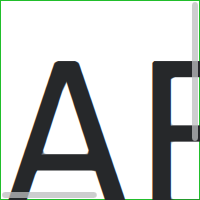
ScrollViewのカスタマイズ
ScrollView background アイテムと、水平および垂直のスクロールバーで構成されています。
ScrollView {
    id: control

    width: 200
    height: 200
    focus: true

    Label {
        text: "ABC"
        font.pixelSize: 224
    }

    ScrollBar.vertical: ScrollBar {
        parent: control
        x: control.mirrored ? 0 : control.width - width
        y: control.topPadding
        height: control.availableHeight
        active: control.ScrollBar.horizontal.active
    }

    ScrollBar.horizontal: ScrollBar {
        parent: control
        x: control.leftPadding
        y: control.height - height
        width: control.availableWidth
        active: control.ScrollBar.vertical.active
    }

    background: Rectangle {
        border.color: control.activeFocus ? "#21be2b" : "#bdbebf"
    }
}
Sliderのカスタマイズ
Slider は、background とhandle の 2 つのビジュアル項目で構成されています。

import QtQuick
import QtQuick.Controls.Basic

Slider {
    id: control
    value: 0.5

    background: Rectangle {
        x: control.leftPadding
        y: control.topPadding + control.availableHeight / 2 - height / 2
        implicitWidth: 200
        implicitHeight: 4
        width: control.availableWidth
        height: implicitHeight
        radius: 2
        color: "#bdbebf"

        Rectangle {
            width: control.visualPosition * parent.width
            height: parent.height
            color: "#21be2b"
            radius: 2
        }
    }

    handle: Rectangle {
        x: control.leftPadding + control.visualPosition * (control.availableWidth - width)
        y: control.topPadding + control.availableHeight / 2 - height / 2
        implicitWidth: 26
        implicitHeight: 26
        radius: 13
        color: control.pressed ? "#f0f0f0" : "#f6f6f6"
        border.color: "#bdbebf"
    }
}
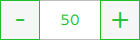
SpinBoxのカスタマイズ
SpinBox background 、 、 、 の4つのビジュアル項目で構成されています。contentItem up indicator down indicator
import QtQuick
import QtQuick.Controls.Basic

SpinBox {
    id: control
    value: 50
    editable: true

    contentItem: TextInput {
        z: 2
        text: control.textFromValue(control.value, control.locale)

        font: control.font
        color: "#21be2b"
        selectionColor: "#21be2b"
        selectedTextColor: "#ffffff"
        horizontalAlignment: Qt.AlignHCenter
        verticalAlignment: Qt.AlignVCenter

        readOnly: !control.editable
        validator: control.validator
        inputMethodHints: Qt.ImhFormattedNumbersOnly
    }

    up.indicator: Rectangle {
        x: control.mirrored ? 0 : parent.width - width
        height: parent.height
        implicitWidth: 40
        implicitHeight: 40
        color: control.up.pressed ? "#e4e4e4" : "#f6f6f6"
        border.color: enabled ? "#21be2b" : "#bdbebf"

        Text {
            text: "+"
            font.pixelSize: control.font.pixelSize * 2
            color: "#21be2b"
            anchors.fill: parent
            fontSizeMode: Text.Fit
            horizontalAlignment: Text.AlignHCenter
            verticalAlignment: Text.AlignVCenter
        }
    }

    down.indicator: Rectangle {
        x: control.mirrored ? parent.width - width : 0
        height: parent.height
        implicitWidth: 40
        implicitHeight: 40
        color: control.down.pressed ? "#e4e4e4" : "#f6f6f6"
        border.color: enabled ? "#21be2b" : "#bdbebf"

        Text {
            text: "-"
            font.pixelSize: control.font.pixelSize * 2
            color: "#21be2b"
            anchors.fill: parent
            fontSizeMode: Text.Fit
            horizontalAlignment: Text.AlignHCenter
            verticalAlignment: Text.AlignVCenter
        }
    }

    background: Rectangle {
        implicitWidth: 140
        border.color: "#bdbebf"
    }
}
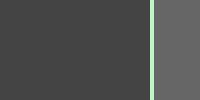
SplitViewのカスタマイズ
SplitView は、handle デリゲートというビジュアル要素で構成されています。
SplitView {
    id: splitView
    anchors.fill: parent

    handle: Rectangle {
        implicitWidth: 4
        implicitHeight: 4
        color: SplitHandle.pressed ? "#81e889"
            : (SplitHandle.hovered ? Qt.lighter("#c2f4c6", 1.1) : "#c2f4c6")
    }

    Rectangle {
        implicitWidth: 150
        color: "#444"
    }
    Rectangle {
        implicitWidth: 50
        color: "#666"
    }
}
StackViewのカスタマイズ
StackView にはビジュアルbackground アイテムを含めることができ、プッシュ、ポップ、および置換操作に使用される遷移をカスタマイズできます。
import QtQuick
import QtQuick.Controls.Basic

StackView {
    id: control

    popEnter: Transition {
        XAnimator {
            from: (control.mirrored ? -1 : 1) * -control.width
            to: 0
            duration: 400
            easing.type: Easing.OutCubic
        }
    }

    popExit: Transition {
        XAnimator {
            from: 0
            to: (control.mirrored ? -1 : 1) * control.width
            duration: 400
            easing.type: Easing.OutCubic
        }
    }
}
SwipeDelegateのカスタマイズ
SwipeDelegate は、6 つのビジュアル項目(background 、contentItem 、indicator 、swipe.left 、swipe.right 、swipe.behind )で構成されています。
import QtQuick
import QtQuick.Controls.Basic

SwipeDelegate {
    id: control
    text: qsTr("SwipeDelegate")

    Component {
        id: component

        Rectangle {
            color: SwipeDelegate.pressed ? "#333" : "#444"
            width: parent.width
            height: parent.height
            clip: true

            Label {
                text: qsTr("Press me!")
                color: "#21be2b"
                anchors.centerIn: parent
            }
        }
    }

    swipe.left: component
    swipe.right: component

    contentItem: Text {
        text: control.text
        font: control.font
        color: control.enabled ? (control.down ? "#17a81a" : "#21be2b") : "#bdbebf"
        elide: Text.ElideRight
        verticalAlignment: Text.AlignVCenter

        Behavior on x {
            enabled: !control.down
            NumberAnimation {
                easing.type: Easing.InOutCubic
                duration: 400
            }
        }
    }
}
SwipeViewのカスタマイズ
SwipeView には、background という視覚要素が含まれる場合があります。ナビゲーションはcontentItem によって実装されています。
import QtQuick
import QtQuick.Controls.Basic

SwipeView {
    id: control

    background: Rectangle {
        color: "#eeeeee"
    }
}
Switchのカスタマイズ
Switchは、background 、contentItem 、indicator の3つのビジュアルアイテムで構成されています。

import QtQuick
import QtQuick.Controls.Basic

Switch {
    id: control
    text: qsTr("Switch")

    indicator: Rectangle {
        implicitWidth: 48
        implicitHeight: 26
        x: control.leftPadding
        y: parent.height / 2 - height / 2
        radius: 13
        color: control.checked ? "#17a81a" : "#ffffff"
        border.color: control.checked ? "#17a81a" : "#cccccc"

        Rectangle {
            x: control.checked ? parent.width - width : 0
            width: 26
            height: 26
            radius: 13
            color: control.down ? "#cccccc" : "#ffffff"
            border.color: control.checked ? (control.down ? "#17a81a" : "#21be2b") : "#999999"
        }
    }

    contentItem: Text {
        text: control.text
        font: control.font
        opacity: enabled ? 1.0 : 0.3
        color: control.down ? "#17a81a" : "#21be2b"
        verticalAlignment: Text.AlignVCenter
        leftPadding: control.indicator.width + control.spacing
    }
}
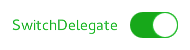
SwitchDelegateのカスタマイズ
SwitchDelegate 3つのビジュアルアイテム(background 、contentItem 、indicator )で構成されています。
import QtQuick
import QtQuick.Controls.Basic

SwitchDelegate {
    id: control
    text: qsTr("SwitchDelegate")
    checked: true

    contentItem: Text {
        rightPadding: control.indicator.width + control.spacing
        text: control.text
        font: control.font
        opacity: enabled ? 1.0 : 0.3
        color: control.down ? "#17a81a" : "#21be2b"
        elide: Text.ElideRight
        verticalAlignment: Text.AlignVCenter
    }

    indicator: Rectangle {
        implicitWidth: 48
        implicitHeight: 26
        x: control.width - width - control.rightPadding
        y: parent.height / 2 - height / 2
        radius: 13
        color: control.checked ? "#17a81a" : "transparent"
        border.color: control.checked ? "#17a81a" : "#cccccc"

        Rectangle {
            x: control.checked ? parent.width - width : 0
            width: 26
            height: 26
            radius: 13
            color: control.down ? "#cccccc" : "#ffffff"
            border.color: control.checked ? (control.down ? "#17a81a" : "#21be2b") : "#999999"
        }
    }

    background: Rectangle {
        implicitWidth: 100
        implicitHeight: 40
        visible: control.down || control.highlighted
        color: control.down ? "#bdbebf" : "#eeeeee"
    }
}
TabBarのカスタマイズ
TabBar は、2つのビジュアルアイテム(background 、contentItem )で構成されています。

import QtQuick
import QtQuick.Controls.Basic

TabBar {
    id: control

    background: Rectangle {
        color: "#eeeeee"
    }

    TabButton {
        text: qsTr("Home")
    }
    TabButton {
        text: qsTr("Discover")
    }
    TabButton {
        text: qsTr("Activity")
    }
}
TabButtonのカスタマイズ
TabButton は、Button と同様の方法でカスタマイズできます。
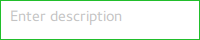
TextAreaのカスタマイズ
TextArea background アイテムで構成されています。
import QtQuick
import QtQuick.Controls.Basic

TextArea {
    id: control
    placeholderText: qsTr("Enter description")

    background: Rectangle {
        implicitWidth: 200
        implicitHeight: 40
        border.color: control.enabled ? "#21be2b" : "transparent"
    }
}
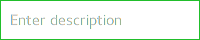
TextFieldのカスタマイズ
TextField background 項目で構成されています。
import QtQuick
import QtQuick.Controls.Basic

TextField {
    id: control
    placeholderText: qsTr("Enter description")

    background: Rectangle {
        implicitWidth: 200
        implicitHeight: 40
        color: control.enabled ? "transparent" : "#353637"
        border.color: control.enabled ? "#21be2b" : "transparent"
    }
}
ToolBarのカスタマイズ
ToolBar 1つのビジュアル項目(background )で構成されています。

ToolBar {
    id: control

    background: Rectangle {
        implicitHeight: 40
        color: "#eeeeee"

        Rectangle {
            width: parent.width
            height: 1
            anchors.bottom: parent.bottom
            color: "transparent"
            border.color: "#21be2b"
        }
    }

    RowLayout {
        anchors.fill: parent
        ToolButton {
            text: qsTr("Undo")
        }
        ToolButton {
            text: qsTr("Redo")
        }
    }
}
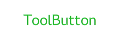
ToolButtonのカスタマイズ
ToolButton 2つのビジュアル項目(background およびcontentItem )で構成されています。
import QtQuick
import QtQuick.Controls.Basic

ToolButton {
    id: control
    text: qsTr("ToolButton")
    width: 120

    contentItem: Text {
        text: control.text
        font: control.font
        opacity: enabled ? 1.0 : 0.3
        color: control.down ? "#17a81a" : "#21be2b"
        horizontalAlignment: Text.AlignHCenter
        verticalAlignment: Text.AlignVCenter
        elide: Text.ElideRight
    }

    background: Rectangle {
        implicitWidth: 40
        implicitHeight: 40
        color: Qt.darker("#33333333", control.enabled && (control.checked || control.highlighted) ? 1.5 : 1.0)
        opacity: enabled ? 1 : 0.3
        visible: control.down || (control.enabled && (control.checked || control.highlighted))
    }
}
ToolSeparatorのカスタマイズ
ToolSeparator 2つのビジュアル・アイテムで構成されています:background およびcontentItem 。

ToolBar {
    RowLayout {
        anchors.fill: parent

        ToolButton {
            text: qsTr("Action 1")
        }
        ToolButton {
            text: qsTr("Action 2")
        }

        ToolSeparator {
            padding: vertical ? 10 : 2
            topPadding: vertical ? 2 : 10
            bottomPadding: vertical ? 2 : 10

            contentItem: Rectangle {
                implicitWidth: parent.vertical ? 1 : 24
                implicitHeight: parent.vertical ? 24 : 1
                color: "#c3c3c3"
            }
        }

        ToolButton {
            text: qsTr("Action 3")
        }
        ToolButton {
            text: qsTr("Action 4")
        }

        Item {
            Layout.fillWidth: true
        }
    }
}
ツールチップのカスタマイズ
ToolTip 2 つのビジュアル項目(background とcontentItem )で構成されています。
import QtQuick
import QtQuick.Controls.Basic

ToolTip {
    id: control
    text: qsTr("A descriptive tool tip of what the button does")

    contentItem: Text {
        text: control.text
        font: control.font
        color: "#21be2b"
    }

    background: Rectangle {
        border.color: "#21be2b"
    }
}
注: attached ToolTip をカスタマイズするには 、独自のスタイルの一部としてこれを指定する必要があります。ToolTip を1回限りカスタマイズするには、Custom Tool Tips を参照してください。
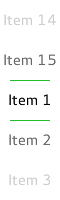
Tumblerのカスタマイズ
Tumblerは、background 、contentItem 、およびdelegate という3つのビジュアルアイテムで構成されています。
import QtQuick
import QtQuick.Controls.Basic

Tumbler {
    id: control
    model: 15

    background: Item {
        Rectangle {
            opacity: control.enabled ? 0.2 : 0.1
            border.color: "#000000"
            width: parent.width
            height: 1
            anchors.top: parent.top
        }

        Rectangle {
            opacity: control.enabled ? 0.2 : 0.1
            border.color: "#000000"
            width: parent.width
            height: 1
            anchors.bottom: parent.bottom
        }
    }

    delegate: Text {
        text: qsTr("Item %1").arg(modelData + 1)
        font: control.font
        horizontalAlignment: Text.AlignHCenter
        verticalAlignment: Text.AlignVCenter
        opacity: 1.0 - Math.abs(Tumbler.displacement) / (control.visibleItemCount / 2)

        required property var modelData
        required property int index
    }

    Rectangle {
        anchors.horizontalCenter: control.horizontalCenter
        y: control.height * 0.4
        width: 40
        height: 1
        color: "#21be2b"
    }

    Rectangle {
        anchors.horizontalCenter: control.horizontalCenter
        y: control.height * 0.6
        width: 40
        height: 1
        color: "#21be2b"
    }
}
独自の contentItem を定義したい場合は、ルートアイテムとしてListView またはPathView のいずれかを使用してください。ラップする Tumbler を作成する場合は、PathView を使用してください:
Tumbler {
    id: tumbler

    contentItem: PathView {
        id: pathView
        model: tumbler.model
        delegate: tumbler.delegate
        clip: true
        pathItemCount: tumbler.visibleItemCount + 1
        preferredHighlightBegin: 0.5
        preferredHighlightEnd: 0.5
        dragMargin: width / 2

        path: Path {
            startX: pathView.width / 2
            startY: -pathView.delegateHeight / 2
            PathLine {
                x: pathView.width / 2
                y: pathView.pathItemCount * pathView.delegateHeight - pathView.delegateHeight / 2
            }
        }

        property real delegateHeight: tumbler.availableHeight / tumbler.visibleItemCount
    }
}改行しないTumblerを使用する場合は、ListView を使用してください:
Tumbler {
    id: tumbler

    contentItem: ListView {
        model: tumbler.model
        delegate: tumbler.delegate

        snapMode: ListView.SnapToItem
        highlightRangeMode: ListView.StrictlyEnforceRange
        preferredHighlightBegin: height / 2 - (height / tumbler.visibleItemCount / 2)
        preferredHighlightEnd: height / 2 + (height / tumbler.visibleItemCount / 2)
        clip: true
    }
}
TableViewDelegateのカスタマイズ
TableViewDelegate は `ItemDelegate` を継承しているため、background とcontentItem の 2 つのビジュアルアイテムで構成されています。
デフォルトの編集デリゲートが提供する機能以外のニーズがある場合は、いつでもeditDelegate に独自の編集デリゲートを割り当てることができます。
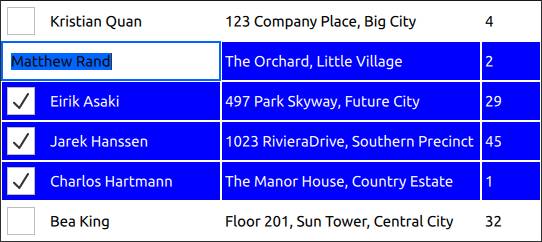
delegate: TableViewDelegate {
    id: tableCell

    checked: column === 0 ? checkBox.checked : tableView.itemAtIndex(tableView.index(row, 0)).checked
    selected: checked

    background: Item {
        Rectangle {
            anchors.fill: parent
            anchors.margins: tableCell.current ? 3 : 1
            color: tableCell.selected ? "blue" : "white"
        }

        Rectangle {
            anchors.fill: parent
            color: "transparent"
            border.color: "darkblue"
            border.width: tableCell.current ? 2 : 0
        }
    }

    contentItem: Item {
        implicitHeight: 40
        visible: !tableCell.editing

        RowLayout {
            anchors.fill: parent

            CheckBox {
                id: checkBox
                implicitWidth: height
                Layout.fillHeight: true
                checked: false
                visible: tableCell.column === 0
            }

            Text {
                Layout.leftMargin: 4
                Layout.fillWidth: true
                Layout.fillHeight: true
                verticalAlignment: Text.AlignVCenter
                color: tableCell.selected ? "white" : "black"
                text: tableCell.model.display
            }
        }
    }

    TableView.editDelegate: FocusScope {
        width: parent.width
        height: parent.height

        TableView.onCommit: {
            let qaim = tableCell.tableView.model
            if (!qaim)
                return
            const index = qaim.index(tableCell.row, tableCell.column)
            // instead of the edit role, any custom role supported by the model can be checked
            // e.g. if (!tableCell.checked || !tableCell.model.customRole)
            if (!tableCell.checked || !tableCell.model.edit)
                return
            // instead of the edit role, any custom role supported by the model can be set
            // e.g. tableCell.model.customRole = textField.text
            tableCell.model.edit = textField.text
            tableCell.model.display = textField.text
        }

        Component.onCompleted: textField.selectAll()

        TextField {
            id: textField
            anchors.fill: parent
            text: tableCell.model.edit ?? tableCell.model.display ?? ""
            focus: true
        }
    }
}
HeaderViewDelegateのカスタマイズ
HeaderViewDelegateはTableViewDelegate を継承しています。つまり、background とcontentItem という2つのアイテムで構成されています。これらはいつでも任意のアイテムにカスタマイズ可能です。
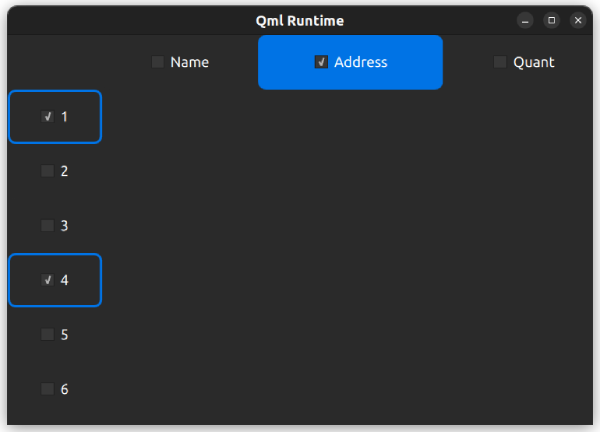
以下に、水平ヘッダービューデリゲートをカスタマイズする例を示します:
delegate: HorizontalHeaderViewDelegate {
    id: horizontalDelegate

    required property int index
    required property string modelData

    background: Rectangle {
        height: horizontalDelegate.height
        color: columnCheckBox.checked ? palette.highlight : palette.base
        radius: 8
    }

    contentItem: Item {
        implicitWidth: columnCheckBox.implicitWidth * 2
        implicitHeight: 40

        CheckBox {
            id: columnCheckBox
            anchors.centerIn: parent
            text: horizontalDelegate.modelData
            Component.onCompleted: checked = horizontalDelegate.index === 1
        }
    }
}
以下は、垂直ヘッダービューデリゲートをカスタマイズする例です:
delegate: VerticalHeaderViewDelegate {
    id: verticalDelegate

    required property int index

    background: Rectangle {
        height: verticalDelegate.height
        color: palette.base
        border.width: rowCheckBox.checked ? 2 : 0
        border.color: palette.highlight
        radius: 8
    }

    contentItem: Item {
        implicitWidth: rowCheckBox.implicitWidth * 2
        implicitHeight: 40

        CheckBox {
            id: rowCheckBox
            anchors.centerIn: parent
            text: verticalDelegate.index + 1
            Component.onCompleted: checked = verticalDelegate.index % 3 === 0
        }
    }
}
StyleKit を使用したコントロールのスタイリング
Qt LabsのStyleKitモジュールは、Qt Quick Templates 2を基盤として、Qt Quick コントロールのスタイリングを行うための一連のQML型を提供します。これにより、テーマ、状態に基づくスタイリング、トランジションのサポートを含め、単一のStyleオブジェクトからすべてのコントロールの完全な視覚スタイルを定義できます。 StyleKitは、基盤となるテンプレート実装を自動的に処理するため、ユーザーは色、寸法、枠線、影などの視覚的な側面にのみ集中することができます。
Qt LabsのStyleKitモジュールは、Qt 6.11におけるテクノロジープレビューモジュールです。
© 2026 The Qt Company Ltd. Documentation contributions included herein are the copyrights of their respective owners. The documentation provided herein is licensed under the terms of the GNU Free Documentation License version 1.3 as published by the Free Software Foundation. Qt and respective logos are trademarks of The Qt Company Ltd. in Finland and/or other countries worldwide. All other trademarks are property of their respective owners.
